

|
|
|
|
|
|
This topic shows how to add a $100 bonus transaction with a tax override for Alan Fletcher. The bonus allowance has Tax override = 'Yes" and Tax override type = "Bonus".
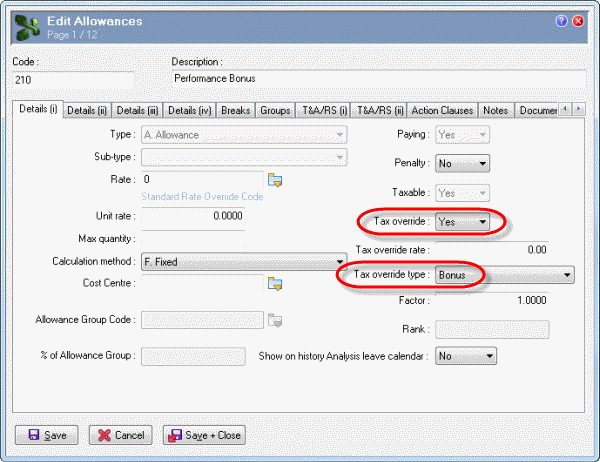
When you add the bonus transaction, you can enter tax override details to ensure that Alan is taxed at the correct rate for this irregular transaction.
The Pay Sequences form appears.
Transaction View appears for the manual pay.
Note: This example uses a customised layout and a query that displays only weekly employees. See the Transaction View Customisation manual for more details.
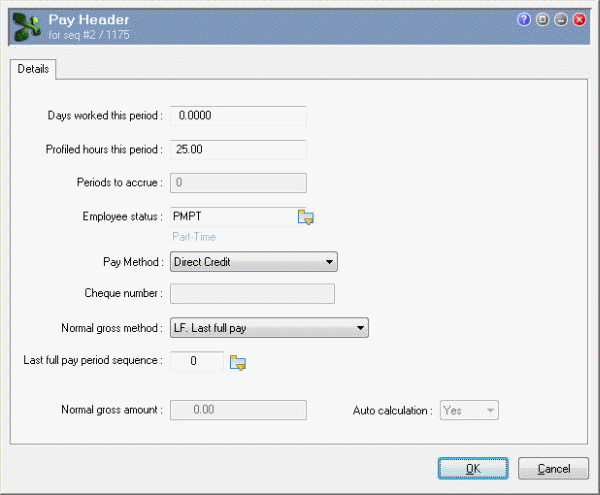
Because you are adding a transaction to a manual pay, the Pay Header form appears.
Field |
Value |
Details |
|---|---|---|
Days worked this period |
0.0000 |
Default value. |
Profiled hours this period |
25.00 |
Exolvo derived this default value from Alan's employee record. |
Employee status |
PMPT |
Exolvo derived this default value from Alan's employee record. |
Pay Method |
Direct Credit |
Exolvo derived this default value from Alan's employee record. |
Cheque number |
Enabled when Pay Method = "Q. Cheque". |
|
Normal gross method |
LF. Last full pay |
Default option based on the Default normal gross earnings calculation value in Company Settings. |
Last full pay period sequence |
0 |
Leave this field blank. If the employee has marginal tax transactions, when you process the pay, Exolvo will automatically insert the pay sequence that was the employee's last full pay. |
Note: Alternatively, you can use the pick list to select the pay sequence that was the employee's last full pay. |
||
Normal gross amount |
This field is disabled. If the employee has marginal tax transactions, when you process the pay, Exolvo will automatically enter the employee's normal gross amount based on their last full pay. |
|
Auto calculation |
This read-only, Yes/No field shows whether the Normal gross amount was auto-calculated or set manually. |
|
In this example, Alan has permanent transactions so a Confirm message appears.
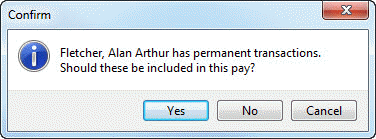
You do not want to include Alan’s permanent transactions in this manual pay.
Another Confirm message appears.
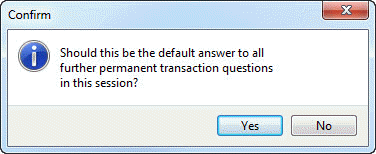
You do not want to include any permanent transactions in this manual pay.
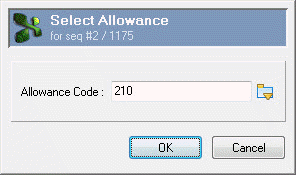
The Select Allowance box appears.
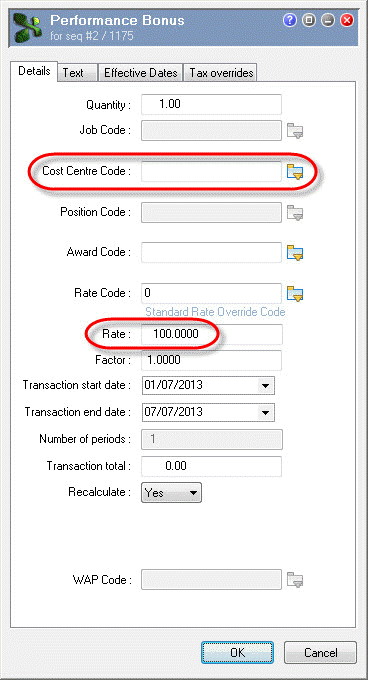
The Performance Bonus | Details tab appears.
Field |
Value |
Details |
|---|---|---|
Quantity |
1.00 |
Default value. |
Cost Centre Code |
(Blank) |
Delete the default value. |
Important: You must remove the default Cost Centre Code otherwise you will model this cost centre to the other sales employee. When you process these transactions, Exolvo will add the correct Cost Centre Code for each employee. |
||
Rate Code |
0 |
Default rate code for this allowance. |
Rate |
100.0000 |
Bonus amount. |
Transaction start date |
01/07/2013 |
Default value — start date of this pay sequence. |
Transaction end date |
07/07/2013 |
Default value — end date of this pay sequence. |
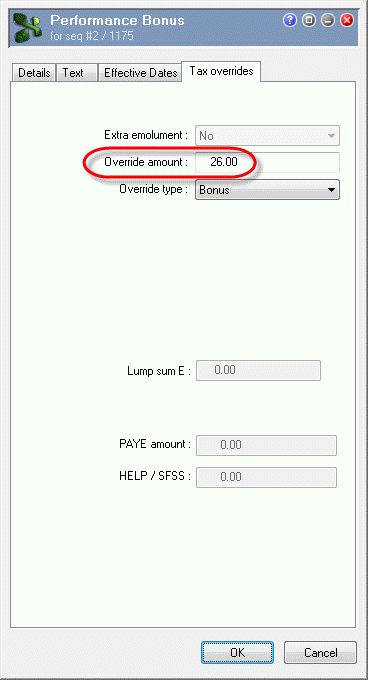
Alan's bonus applies to the previous six months so you will add a taxation override period of 26 (weeks) to ensure that Alan is taxed at the correct rate.
Field |
Value |
Details |
|---|---|---|
Override amount |
26.00 |
Alan's bonus will be taxed over 26 weeks. |
Note: The default value is 52.00 so the transaction would be taxed over a full year. |
||
|
|
|
 |
Topic: 39202


