

|
|
|
|
|
|
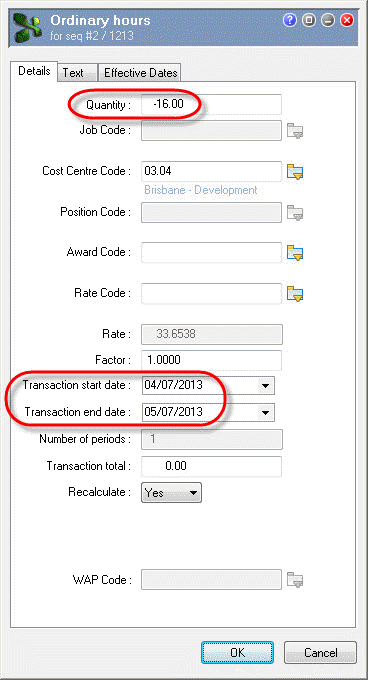
This topic shows how to add an Ordinary hours transaction for -16 hours (04/07/2013 and 05/07/2013) to reverse Guy Skerret's Consultancy hours that were incorrectly costed to Development.
You are in Transaction View for the manual pay.
Guy's Pay Header form appears.
The Select Allowance form appears.
The Ordinary Hours | Details tab appears.
Field |
Value |
Details |
|---|---|---|
Quantity |
-16.00 |
Reverse the hours in closed Standard Pay # W/1. |
Transaction start date |
04/07/2013 |
First day in this week that Guy worked in Consultancy. |
Transaction end date |
05/07/2013 |
Last day in this week that Guy worked in Consultancy. |
|
|
|
 |
Topic: 39217


