

|
|
|
|
|
|
This topic shows how to use the Process Pay command to fully process a manual pay.
You are on the main window.
The Process Pay | Details tab appears.
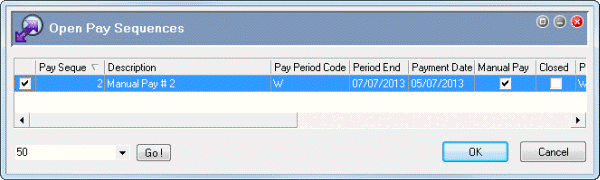
The Open Pay Sequences form appears.
Note: The number in the Pay sequences field (1) refers to the total number of pays selected, not the pay sequence number.
Further Reading: For more information on Process Pay fields, press F1 to access the Exolvo Help file.
 |
Topic: 39228


