

|
|
|
|
|
The Workflow Transfer function allows the assigned employee or WAP to:
To search for workflow units:
Field |
Details |
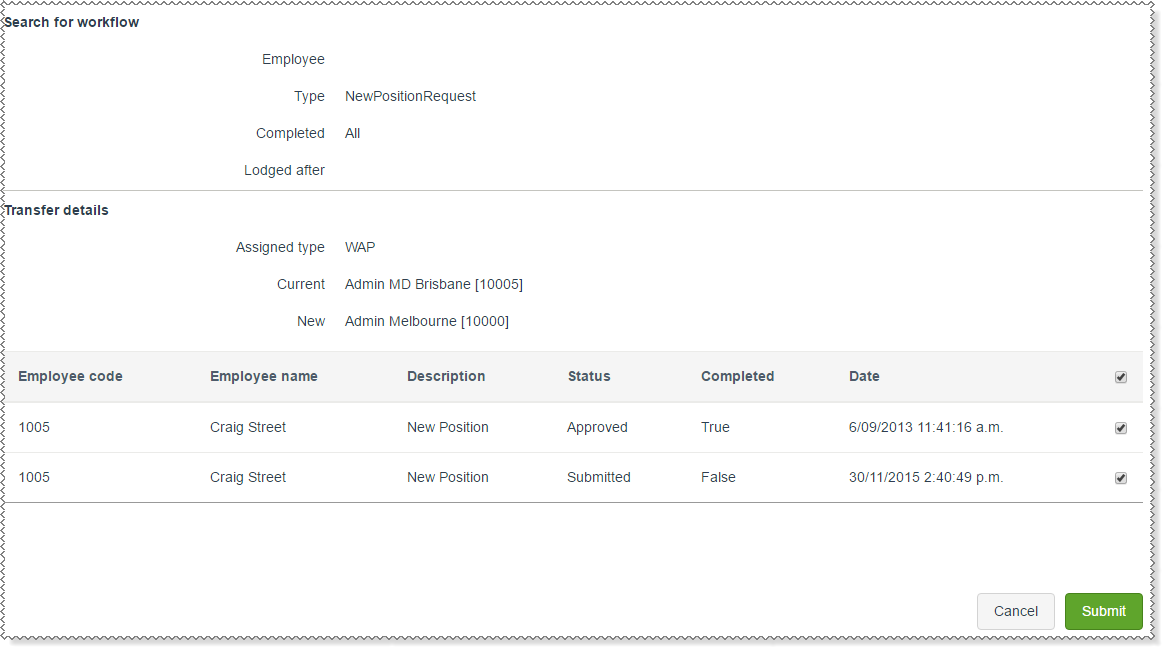
Search for workflow |
|
Use this section to specify your search criteria. |
|
Employee |
Filters results by employee. |
Type |
Filters results by workflow type. |
Completed |
Filters result by workflow status. |
Lodged after |
Filter results by workflow items submitted after the selected date. |
Transfer details |
|
Use this section to select who the workflow items are currently assigned to and who the workflow items will be transferred to. |
|
Assigned type* |
Workflow items are assigned to either a WAP or Workflow Role to action. The option that you select affects the options that are displayed in the next two fields. |
Current* |
Who the workflow item is currently assigned to. If Assigned type = "WAP", then this field displays work area position records. |
New* |
Who the workflow item permissions will be transferred to. If Assigned type = "WAP", then this field displays work area position records. |
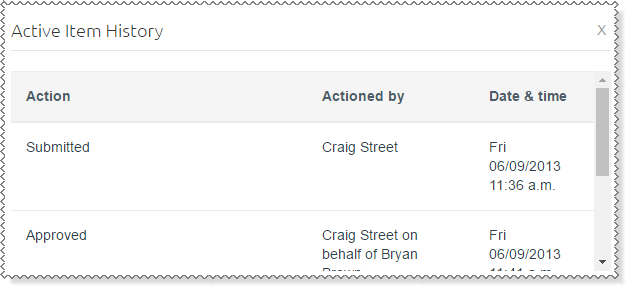
When you reassign workflow units, the change is logged as a history event. The employee can view the change when they click the item's History link in Active Items.
|
|
 |
Topic: 33680

