|
|
|
|
|
|
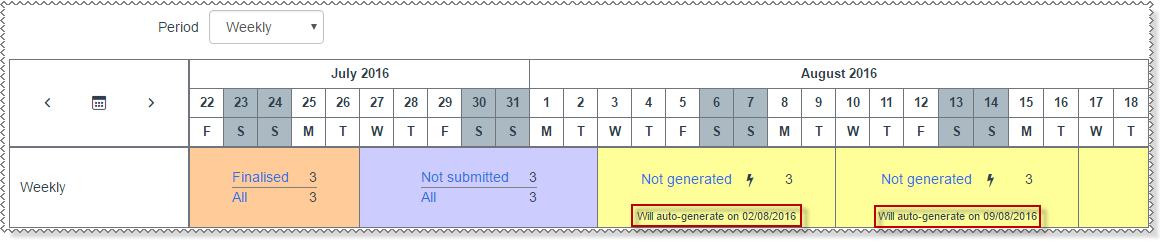
Automate timesheet generation If you can see the Will auto-generate on [date] message, then Self-Service Scheduler will generate the timesheets automatically. However, you can click the Not generated link or generate
|
Employees do not have access to their timesheets until the Timesheet Admin generates a timesheet period for them.
You have the following options for generating timesheets.
beside the Not generated link.
 icon timesheets for multiple employees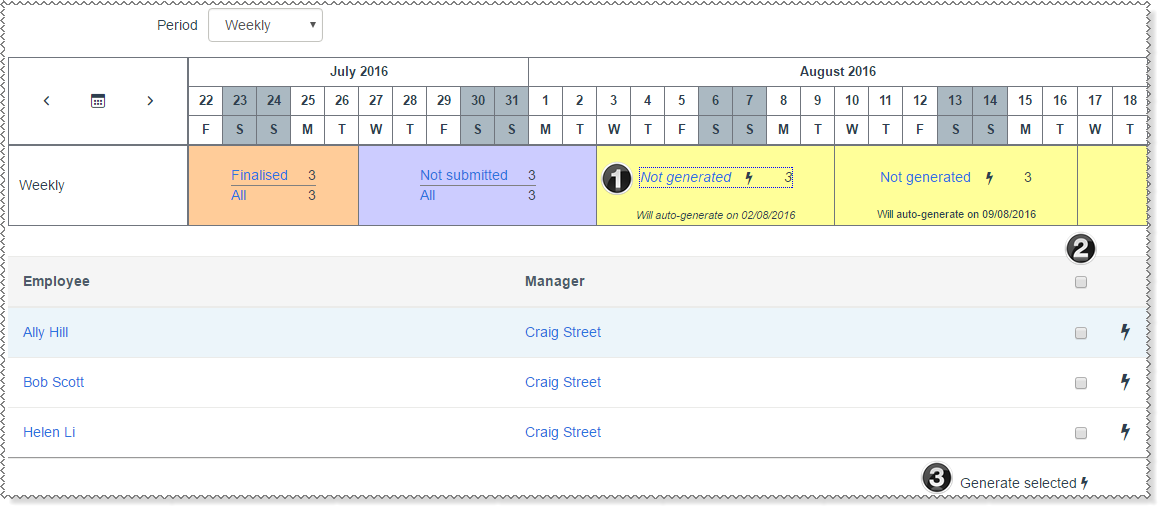
|
Click the Not generated link. |
|
Click the checkboxes for the required employees. Alternatively, click the top checkbox to tick all of the checkboxes and then click the checkboxes for the employees that you do not want to generate timesheets for. |
|
Click Generate selected. |
 icon beside the required employee.
 New employees
If a timesheet settings record is attached to a new employee after you have generated all timesheets, the Not generated link appears for that employee.
When you generate timesheets, ESS creates timesheets for the selected employees based on each employee's timesheet settings. If an employee's timesheet settings use their roster, then the timesheet is populated with their roster information.
This example has 3 timesheets. All 3 timesheets are "Not submitted".

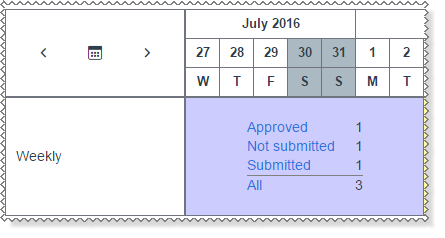
When employees start completing their timesheets, the statuses are updated. The example below has 3 timesheets: 1 is "Not submitted", 1 is "Submitted", and 1 is "Approved".
Click a link to view the timesheets in a specific status.
Note: The cell for a timesheet period that has no employees attached is blank and does not display any links.
|
|
|
 |
Topic: 36993


 icon to generate timesheets if you need to generate timesheets earlier.