

|
|
|
|
|
|
Note: When bulk approval is enabled, the x Timesheets (awaiting action) link on your homepage takes you directly to the Bulk Timesheet Approval screen.
If you can see the Bulk approve employee timesheets link on the Manager Timesheets page, or Manager Bulk Timesheet in the menu, then you can approve multiple timesheets at a time.
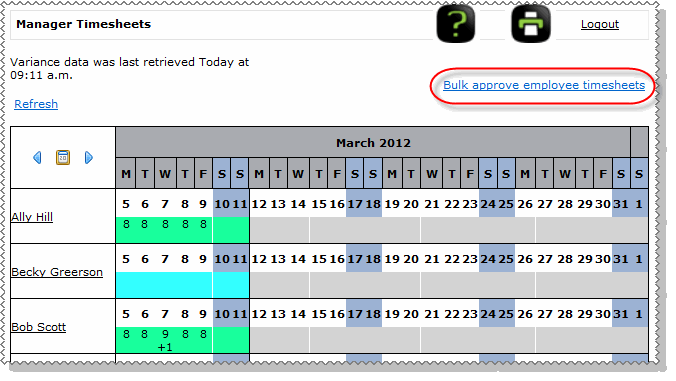
Use the following procedure to use bulk approval.
The Bulk Timesheet Approval page appears.
Note: You cannot approve an employee's timesheet if it contains unapproved leave, so the timesheet is not displayed on the Bulk Timesheet Approval page.
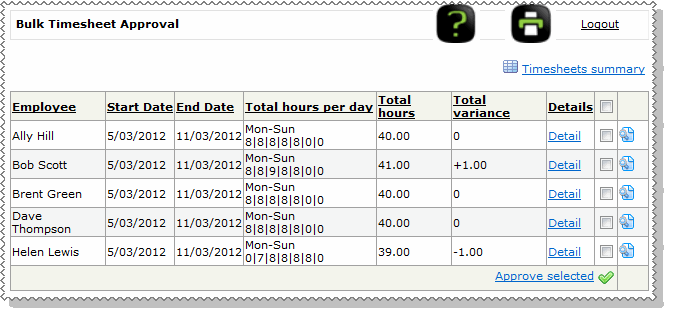
If you are unsure of any of the timesheets, then click the Detail link to view the details of the timesheet.
All of the selected timesheets are approved. This procedure has the same effect as approving the timesheets individually from the Timesheets summary page. For example, emails are sent, the Recall timesheet option appears, and the Timesheet Admin can finalise the timesheets.
The x timesheet(s) were successfully approved message appears below the header.
Note: If an error occurs while the timesheets are being approved:
- the timesheets that can be approved are approved.
- the timesheets that cannot be approved will remain on the Bulk Timesheet Approval page and a message will notify the user that some timesheets could not be approved.
|
|
|
 |
Topic: 38418


