Export KPIs
Note: This function uses the KPIExport_SQL2008_1.0 report, which is a SQL Server Reporting Services report. If you get an error, then this report may not be available or is set up incorrectly.
You can use the Export function to:
- create a report to view all of the KPIs that have been set up for all positions
- export KPIs that have been set up, edit them, and then reimport them.
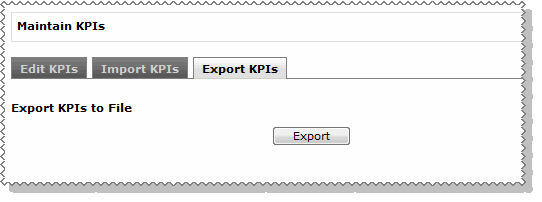
When you export KPIs:
- The KPIs are exported to a Microsoft Excel spreadsheet in the Downloads folder located on the machine that is running your browser. For example, if you are running your browser locally, then the file will be located in C:\Users\[user]\Downloads. If you are accessing the Internet over the network, then the file will be located in the Downloads folder that is hosting the browser.
- All of the KPIs attached to all positions will be included in the export file.
If you have some KPIs set up that you want to export so you can edit them and import to a different WAP:
- Click Export.
- Open the CSV file and edit it as required. For example, if multiple positions will have the same KPIs, then copy and paste the KPIs for one WAP, and change the WAP as required.
- Close the CSV file.
An Excel message appears: Want to save your changes to [filename]?
- Click Save.
- In the Save As dialogue window, select Save as type = CSV, and type a File name or select the original file to overwrite it.
- Click Save.
An Excel message appears:
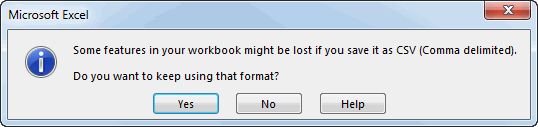
- Click Yes.
You can now import the CSV file using Import KPIs.
Topic: 41551




