

|
|
|
|
|
|
You can use the Update Employee Timesheet Settings command to attach Timesheet Settings records to a group of employees.
Use the following procedure to attach Timesheet Settings records to a group of employees.
The Setup Information tab appears, which displays information about the procedure.
Field |
Details |
New timesheet settings |
Select a Timesheet Settings record. |
Start date |
Type the required start date of the record or select from the calendar.
|
Note: The options that you select in the fields above will be applied to all employees selected in the employee query below. |
|
Employee query |
Use a query to select a specific group of employees. Leave this field blank to run the process for all employees. If you have an employee security query attached to your PayGlobal security profile, then PayGlobal will respect that employee query and the employee query that you select here. |
If the settings above are the same as an employee's current Timesheet Settings record, then a new record will not be created for the employee.
Important: Click Run Update only when you are confident about the changes that PayGlobal will make. Run Update updates the employee records, so if the process makes changes that you do not want, then you must manually undo your changes or restore to a backup.
A confirm message appears: Run preview only?
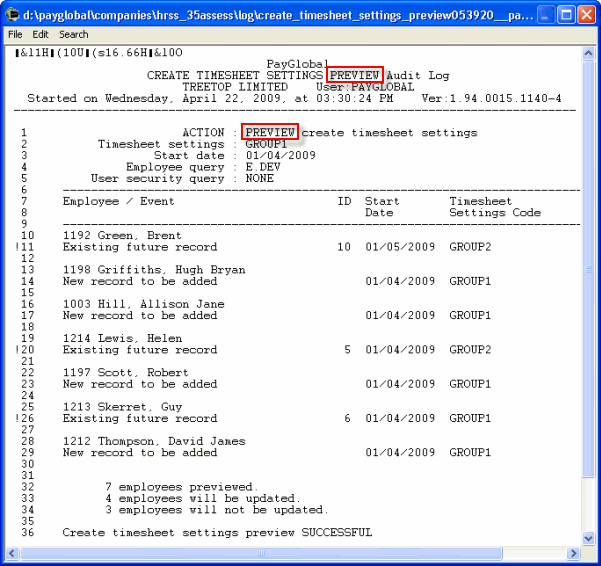
An audit log appears that displays the updates that will occur when you click the Run Update button. This option is a preview only and data is not updated.
The PREVIEW Audit Log displays the following information:
A confirm message appears: Run the Create Timesheet Settings update tool?
PayGlobal updates the employee records defined by the Employee query.
The UPDATE Audit Log appears and displays the following information:
|
|
|
 |
Topic: 8483


