Submit Your Timesheet (2. Timebands by timesheet)
After you add a timeband for each day in your timesheet, you need to submit the timesheet to your manager for approval.
Click the Submit timesheet button to submit your completed timesheet.
ESS checks that all the required data is entered correctly. If an element does not pass validation, then you cannot proceed. You are redirected to the element that has not passed validation, which is highlighted by an error message.
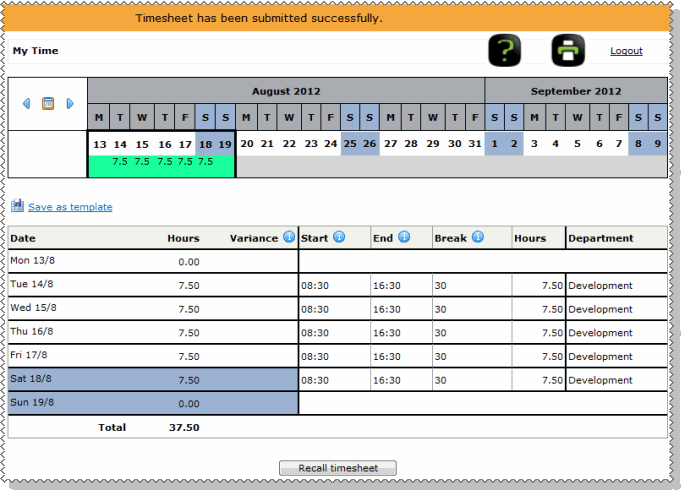
When you submit your timesheet successfully:
- The Timesheet has been submitted successfully message appears.
- The background of the period changes from the not-submitted colour (aqua in this example) to the submitted colour (green in this example).
- The Recall timesheet button may be visible (see Recall timesheet).
- Your manager is advised by email that you have submitted a timesheet.
- A Timesheet item is created in your manager’s Active Items.
- The Timesheet item in your Active Items is updated to "Submitted".
- On the My Time calendar, you can still click and view the timesheet after you have submitted it.
When your manager approves your timesheet:
- The background of the period changes to the approved colour (purple in this example).
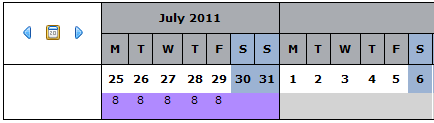
- On the My Time calendar, you can still click and view the timesheet after your manager has approved it.
Topic: 39709




