|
|
|
|
|
|
Field |
Details |
To |
Select from: - Departments - Employee(s) - My Employees (Managers only) - My Manager. Note: Your Self-Service Administrator sets the options that you can select, so you may not see all of these options. |
Recipients |
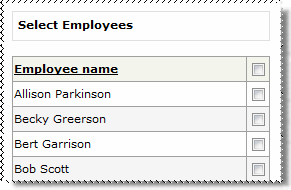
Visible when To = "Departments" or "Employees(s)". To select recipients: 1. Click the pick list button to open the list of departments or employees.
2. Click the checkboxes for the departments or employees that you want to send the email to. 3. Click Submit to send the message. |
Subject |
Enter a subject for your message — similar to the subject line of an email. |
Content |
Enter the content of your message — similar to the body of an email. |
Depending on how Messaging was set up for you, you may receive a read receipt in your Personal Messages when the recipient first opens your message.
|
|
|
 |
Topic: 9338