

|
|
|
|
|
|
This topic shows how to enter setting for a typical Pay Period Calculation Listing report for Standard Pay # W/1.
You are on the main window.
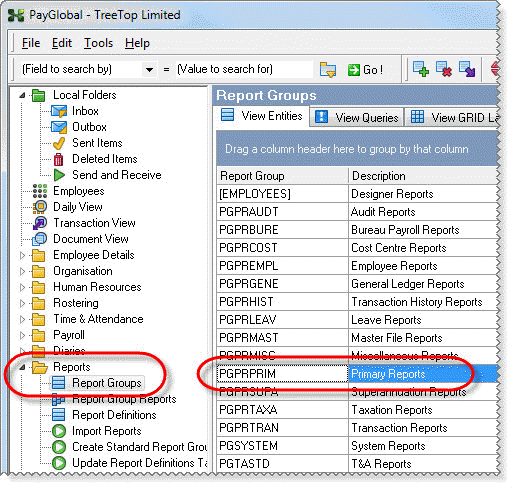
The View Report Groups | Reports tab appears.
Note: Alternatively, click PGPRPRIM001, and then press Ctrl+E.
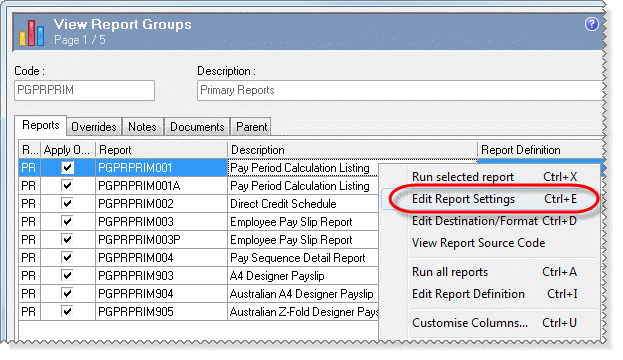
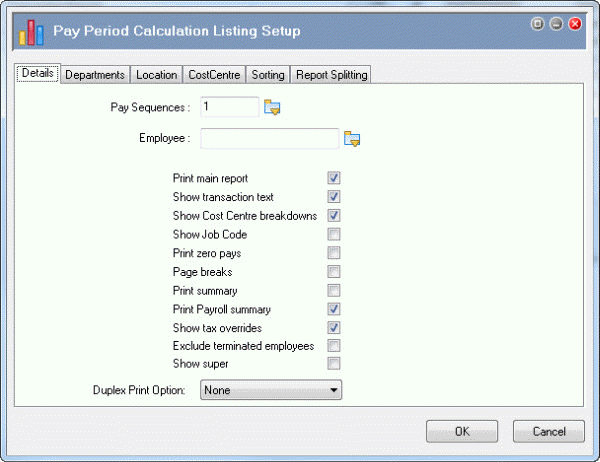
The Pay Period Calculation Listing Setup | Details tab appears.
After you edit the report settings you can run the report, and your settings will become the default setup for this report. You will set up the Pay Period Calculation Listing for Standard Pay #W/2 for all employees.
Field |
Value |
Details |
|---|---|---|
Pay Sequences |
Click the pick list button, select Standard Pay # W/1, and click OK. |
|
Note: The Pay Sequences value is the total number of pays selected, not the pay sequence number. If you select multiple pays, the values for each pay are accumulated. |
||
Employee |
(Blank) |
Leave this field blank to run the report for all employees. |
Print main report |
|
Click this checkbox to show the main report with all employee details and its summary. |
Show transaction text |
|
Click this checkbox to show up to 30 characters of transaction text in the report. |
Show Cost Centre breakdowns |
|
Click this checkbox to see the cost centres. |
Show Job Code |
|
If you wanted to see the job codes for each transaction, you would click this checkbox. |
Print zero pays |
|
If you wanted to see employees who have transactions, but their nett pay is zero, you would click this checkbox. |
Page breaks |
|
If you wanted to sort or group the information, then you would click this checkbox. Page breaks are only inserted if a field is selected on the Sorting tab. |
Print summary |
|
If you wanted to display only the summary section of the main report, you would click this checkbox only. In this example, you clicked Print main report so the summary will be automatically displayed at the end of the main report. The summary contains the following totals:
|
Print Payroll summary |
|
Click this checkbox to display the payroll details summarised by transaction type. |
Show tax overrides |
|
Click this checkbox to see tax override information for each employee. |
Exclude terminated employees |
|
If you wanted to see only current employees, you would tag this checkbox. |
Show super |
|
If you wanted to see superannuation information, you would click this checkbox. |
|
|
|
 |
Topic: 39244


