

|
|
|
|
|
|
Exolvo allows you to manually add RESC amounts and edit existing RESC amounts. You would use such manual transactions if you calculated RESC externally to Exolvo or implemented Exolvo part-way through the Australian financial year.
"RESC amount" Field
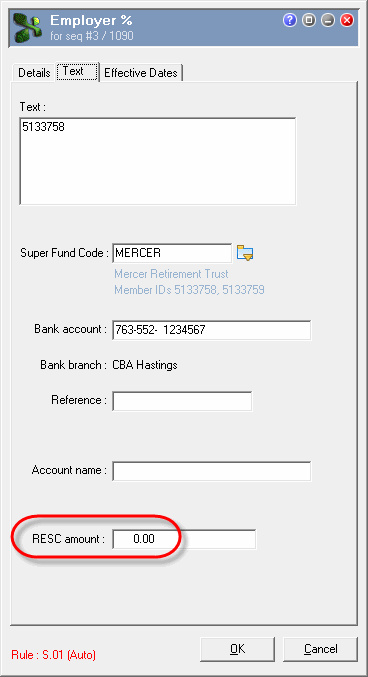
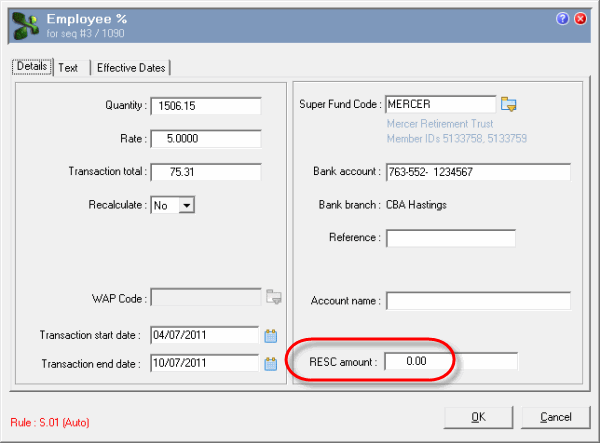
In Transaction View, allowance and deduction transaction forms contain a RESC amount field.
This field is enabled only when a transaction meets all the following criteria:
Allowance transaction | Text tab:
Deduction transaction | Details tab:
RESC Transactions
Recalculate = Yes
Add a superannuation transaction (Super Fund Code field must contain a value). When you process the pay, the RESC amount is calculated.
The RESC amount field is blank and disabled.
Exolvo calculates the RESC amount based on the transaction values.
Recalculate = No
Add a superannuation transaction that contains only the RESC amount, such as an 'opening balance' RESC value.
Exolvo does not recalculate the RESC amount; it uses the value that you entered. The following type of message appears in the audit log:
"Superannuation allowance transaction xxx has Recalculate flag set to No. The total amount will not be adjusted for superannuation OTE thresholds nor will RESC be recalculated for this transaction."
Note: You can also edit these types of transactions to adjust RESC values.
|
|
|
 |
Topic: 24925


