
|
|
|
|
|
|
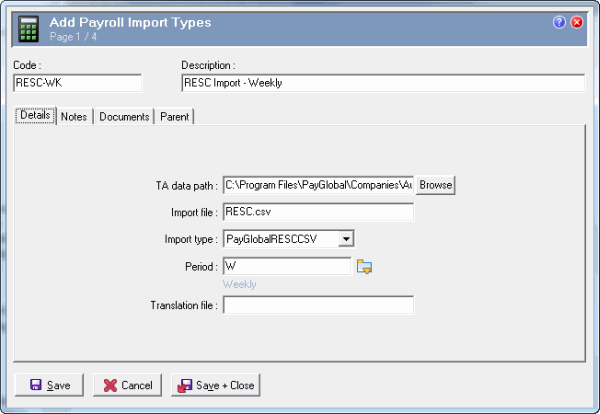
Before you can import RESC values, you need to create a Payroll Import Type record with Import type = "PayGlobalRESCCSV".
Field |
Value |
|---|---|
TA data path |
Path to your company Import folder, such as |
Import file |
Name of the RESC import file, such as RESC.csv |
Import type |
PayGlobalRESCCSV |
Period |
If you want to import RESC into only one type of pay period, then select that period, such as Weekly. If you want to import RESC into all type of pay periods, then leave this field blank. |
Important: Ensure that the Company Settings | Import TA tab | Import file is not similar to the RESC Payroll Import Type file name. Avoid using wildcard-only values, such as *.csv in the Company Settings | Import file field. Use a more definitive value, such as pg*.csv. Company Settings values override Payroll Import Type values, as shown in the following example. Import TA tab has:
|
|
|
|
|
 |
Topic: 27172