

|
|
|
|
|
|
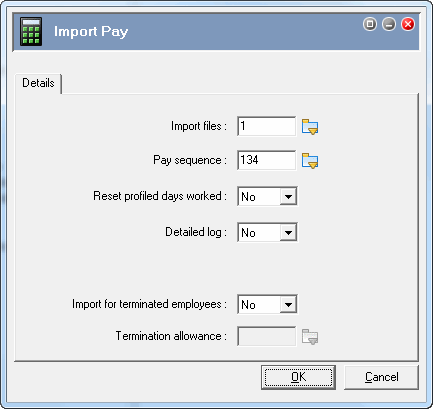
You can import the RESC file in the same way that you import any other pay.
Field |
Value |
|---|---|
Import Files |
Select the RESC import file, such as RESC.csv. |
Important: In the View Import Pay Files form, ensure that the import file that select has Import Type = "PayGlobalRESCCSV" or the import will fail. |
|
Pay Sequence |
Select the open pay sequence that you want to import the RESC values into. |
Reset profiled days worked |
This field is disabled and set to "No" if you are importing only files with Import type = "PayGlobalRESCCSV" |
Detailed Log |
Select "Yes" or "No" |
Create Permanent Transactions |
Displayed only if the Import file is CSV and the Pay Sequence is a Manual pay. Importing PayGlobalRESCCSV files will not cause any permanent transactions to be created. |
Import for terminated employees |
Yes/No field that determines whether Exolvo imports transactions for terminated employees.
|
Termination allowance |
Enabled when Import for terminated employees = "Yes". Select the termination allowance (X-type) that you want Exolvo to use when it adds a termination allowance transaction. If you leave this field blank, then Exolvo uses the first X-type allowance in the Allowance table. The termination transaction uses the Termination date and Termination Reason values from the employee's record. |
 |
Topic: 27173


