

|
|
|
|
|
|
When you click the Run Report Only button, Exolvo verifies the details on the Superannuation Update Tool form. If they are correct, then you can run the tool in report-only mode and check update details in the resultant audit log.
We strongly recommend that you run the tool using the Run Report Only button until you are satisfied with the results in the audit log; only then should you run the tool using the Update Details button.
Exolvo verifies the details on the form.
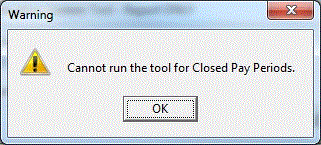
If some details are incorrect, a Warning message appears. In this example, the Application Date occurs in a closed pay:
When you click OK, an audit log Confirm message appears.
Click Yes to view the audit log to see which pay periods are affected.
In this example, you may need to provide an alternative Application Date or apply a query to exclude closed pays. If the closed pays were supposed to have the new rate and you have not sent the pay to the bank, you could roll back the closed pays to fix the superannuation payments. Otherwise, you would need to make manual adjustments.
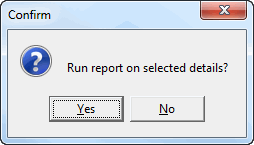
If all details are correct, the following Confirm message appears.
Exolvo runs the tool in report-only mode, and an audit log Confirm message appears.
The log contains the following information for the selected superannuation funds:
Section A - Employee Super Funds records that will be updated.
Section B - Employee Super Funds records that will not be updated because their SG/Award - Employer (%) value does not match the Current SG/Award Employer (%) Contribution value.
Section C - Employee Super Fund records that cannot be updated because their Start date is after the Application Date.
Note: An Employee Super Funds record can be in only one of these sections, but if an employee has multiple superannuation funds, that employee may appear in more than one section.
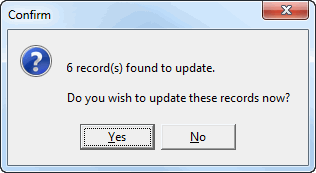
If any records require updating, the following type of Confirm message appears.
 |
Topic: 41138


