

|
|
|
|
|
|
The following procedure explains how to use a query to assign and email passwords to a group of employees.
Note: If employees do not have an email address in their employee record, then you cannot use this procedure. You need to advise them of their password by phone or in writing. Employees may be able to generate their own passwords by using the First time user function in ESS.
You are on the main PayGlobal window.
The Set Self-Service passwords box appears:
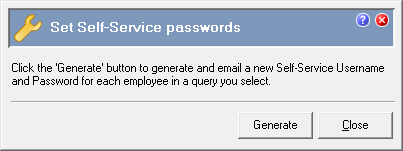
The Select an employee query window appears.
The Send To… box appears.
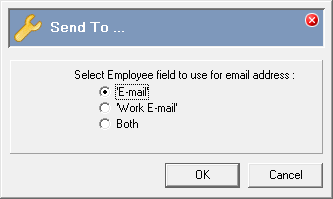
The Set Up Email Template box appears.
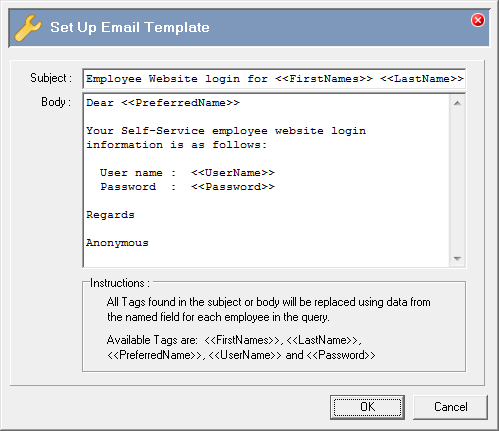
You can use email template tags to insert corresponding information from the employee record.
The following tags are available:
<<FirstNames>>, <<LastName>>, <<PreferredName>>, <<UserName>>, and <<Password>>
Note: PayGlobal saves the content and layout of the email template every time you update it.
An Audit log Confirm box appears.
The log lists employees who will receive the email message.
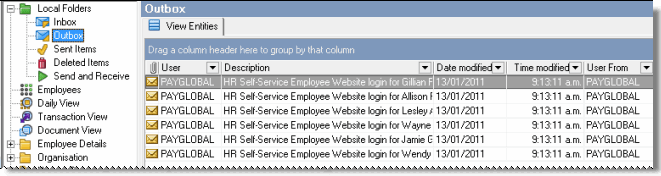
Check that the e-mails are saved in the Outbox.
|
|
|
 |
Topic: 30174


