|
|
|
|
|
|
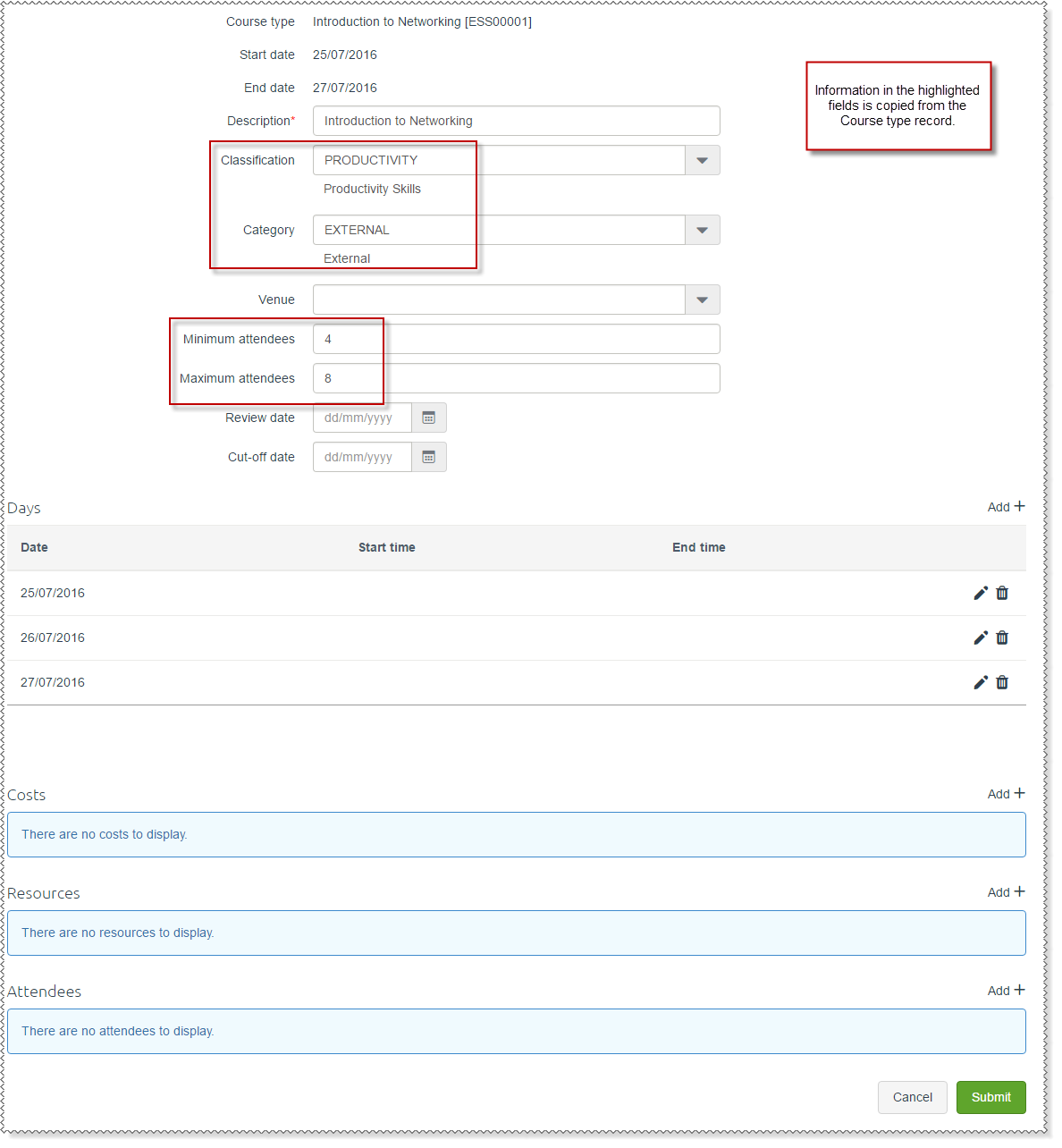
When you click Add to add a new course, the first three fields on the form are displayed. After you complete these fields and click Submit, the remaining fields on the form are displayed.
Click the  link beside each section to add an associated record.
Note: E-Learning courses (E-Learning URL field is populated on the Course Types | Details (i) tab in PayGlobal) are treated the same as normal courses.
The following table explains the fields on the Course Add form.
Field |
Details |
Course type* |
Select the Course type that the Course relates to. When you select a Course type, information in the fields that are highlighted in the image above is copied from the Course type. |
Start date |
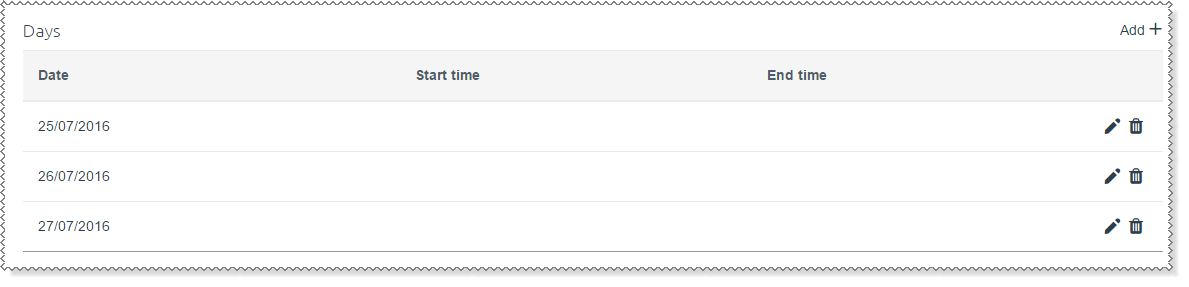
After you enter the course start and end dates, ESS creates the days for this date range in the Days section (below). For example, if you enter: Start date: 25/07/2016 End date: 27/07/2016 following day records are created in the Days section.
|
End date |
|
Description |
Type a description to identify this course. You should use a different description to the associated course type. If you use the default codes when a course type and course are created, such as HRSS00001, then course types and courses may have the same code. |
Course category |
Course categories allow you to group courses into broad categories for reporting purposes. For example, you could use "Internal" and "External" course categories to indicate whether a course is an in-house company course or one provided by an external institution. |
Venue |
Place or location where this course will be held. |
Minimum attendees |
Minimum number of attendees required to run this course. The course needs at least this number of attendees to be cost effective. |
Maximum attendees |
Maximum number of attendees that can attend this course. This value could be determined by the capacity of the venue or it could reflect the maximum Attendee:Instructor ratio. |
Review date |
Date that people who completed this course need to have their capability reviewed or refreshed. |
Cut-off date |
Last date that a manager or employee can book this course. This field is used by ESS to:
|
Days |
|
Date |
Day records are automatically created for the Start date and End date range that you entered above. Click the edit icon for each day to enter a Start time and End time (24-hour clock). |
Start time |
|
End time |
|
Costs |
|
Course cost type* |
Type of cost for this course, such as "Fee". |
Cost category* |
Category of cost for this course, such as "Training and Development". |
Note: The Applies to and Calculation fields determine how PayGlobal calculates the cost of this course. |
|
Applies to* |
|
Calculation* |
|
Amount |
Base rate that is used to calculate the course cost. For example, Number of attendees * Amount. |
Details |
Free-text field that you can use the enter information about the course cost. |
Resources |
|
Resource* |
Equipment and materials used for the course, such as a whiteboard, a projector and a training room. |
Quantity* |
The quantity of the resource specified. |
Attendees |
|
Note:
|
|
Employee code* |
Select the employee in the lookup that you want to add as an attendee. |
Status* |
Status of the employee's involvement in this course:
|
 |
Topic: 32138