

|
|
|
|
|
|
You can display an employee's photo beside their name on the org chart.
Note: Photos must be named using the following format [EmployeeCode]Photo.jpg. For example, if an employee's code is 1003, then you must name their photo 1003Photo.jpg. If the photo is not named correctly, then it will not be displayed.
If an employee does not have a photo in PayGlobal, then ESS uses a No Photo image.
Use the following procedure to add photos to Document View.
You are viewing the main PayGlobal window.
The Document View window appears.
PayGlobal creates a new folder.
The Open window appears.
The Document Settings window appears.
The photo is now published to ESS.
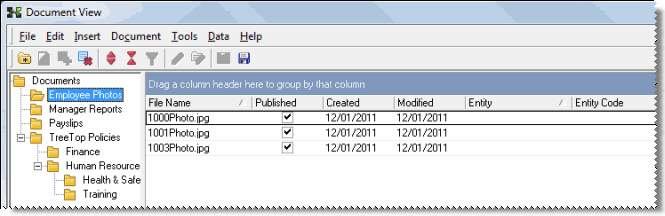
Photo caching
To speed up page processing, ESS caches the images in the ESS\EmployeePhotos folder. The first time that employee photos are viewed in the org chart, ESS copies the photos that were viewed to the ESS\EmployeePhotos folder. ESS then accesses the cached photos in the EmployeePhotos folder, rather than retrieving them from the database.
Photos are retrieved from the database at time intervals specified in the Employee photo refresh (minutes) field. You cannot use <Ctrl> + F5 to force ESS to reload the images from the database.
Important: The ASP.NET process account must have modify access to this folder.
Security
The following options explain how different security settings work together.
Option 1
Employees can see photos in the org chart, but cannot see the Employee Photos folder in My Documents.
Option 2
Employees can see photos in the org chart and all employee photos in the Employee Photos folder in My Documents.
Option 3
Employees can see photos in the org chart and only their own photo in the Employee Photos folder in My Documents.
|
|
|
 |
Topic: 34690


