

|
|
|
|
|
|
The employee's timesheet captures the total hours that they work in each area for each day. The employee submits the timesheet each week and then their manager will approve or decline it.
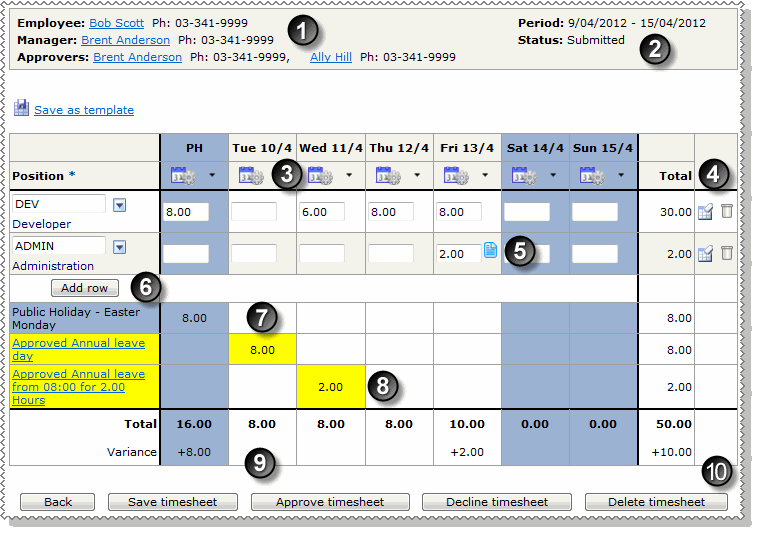
The following image shows a submitted timesheet that is waiting to be approved. The table below the image explains the numbered features on the timesheet grid.
|
Click the manager or employee name to view their details in a popup. |
|
Period: The period date range that the timesheet is for. Status: The status of the timesheet: Not submitted, Submitted, Approved, Finalised, or Deleted. |
|
Single day action (Clear day)
|
|
|
|
To read a note, click the icon to open the Notes popup. Alternatively, hold your cursor over the icon to see the note as hover text. |
|
Employees complete the following process to complete their timesheet for the week. 1. Add a row for each area they work in. 2. Select the relevant details in the lookups. The ESS Administrator sets the lookup fields that employees can see. 3. Enter the hours that they worked in each area on each day. |
|
Public holidays are highlighted blue. In the example above the employee worked the public holiday, so the variance shows "+8" and the total shows "16.00" because the hours worked are treated as a leave credit. However, only the worked hours are exported to PayGlobal. |
|
Leave days are highlighted yellow. When you click the link in the yellow area of a leave request, a popup appears. The popup displays more information about the request and links that you can use to manage the request. The links that are available depend on the state of the leave request (see Leave popups). |
|
Variance ESS compares the hours that the employee was scheduled to work (set up in PayGlobal) against the hours they entered in their timesheet. The difference is displayed in the Variance cell for the day. The Total column displays the total variance for the week. |
|
This timesheet has not been approved by the employee's manager, so you can see the following buttons: - Back - Approve timesheet - Decline timesheet - Delete timesheet. If the manager had approved the timesheet, then you would see the following buttons: - Back |
|
|
|
 |
Topic: 38169


 Click the Clear days action in the action drop-down to clear all details for the day.
 Clears all of the times and notes for the day in that row.
 Deletes the whole row.
 Note. An employee, their manager or the Timesheet Admin can add a message to a timeband. When you hold your cursor over an hours cell, the note icon appears. Click the icon to add a note.


