|
|
|
|
|
|
Note: You can upload KPIs for multiple positions by using the Upload KPIs command to import an Excel spreadsheet.
A Key Performance Indicator (KPI) is a target, goal, or an objective.
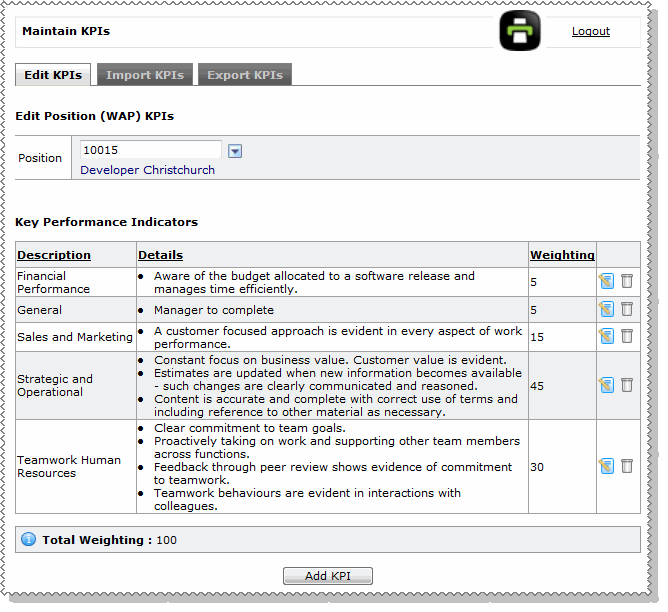
KPIs must be assigned to positions so when an employee logs on to ESS, they can rate themself against the KPIs assigned to their position. See Employee - My Performance Review.
Managers can edit employee KPIs
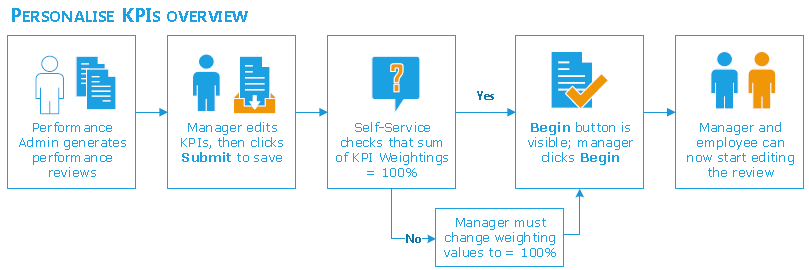
After you Create Performance Reviews, managers can edit each employee's performance review to personalise KPIs for that employee, so discuss with your managers how you will handle KPIs and weightings. For example, managers can add new KPIs, or you can add placeholder KPIs for managers to complete, but managers need to be aware that KPI weightings must equal 100%.
See  Managers can edit employee KPIs process diagram.
To assign KPIs to positions:
Where is the Position record being accessed from?
The positions that you select link to the Work Area Position (WAP) records in PayGlobal. This list displays active WAPs only. A WAP is active when the XWAPENDDATE field is blank or it has a date that is in the future.
The Add KPI form appears.
 |
Topic: 41173