

|
|
|
|
|
|
After your manager approves your plan, you can book yourself on the course types that you requested in your plan.
 beside a course type to view the courses for this course type.
The courses for the selected course type appear.
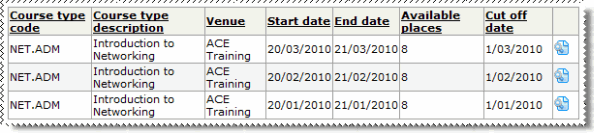
 to view the Course Details.
I cannot see the Book me on course button When you scroll to the bottom of the form, the Book me on course button appears when all of the following conditions are true. - The course is open - The start date is greater than or equal to the current system date - The course cut-off date is greater than the current system date - There are available places on the course - The course is not an e-Learning course. The Book me on course button will not appear if you are already booked on the course. |
The Book Employee form appears.
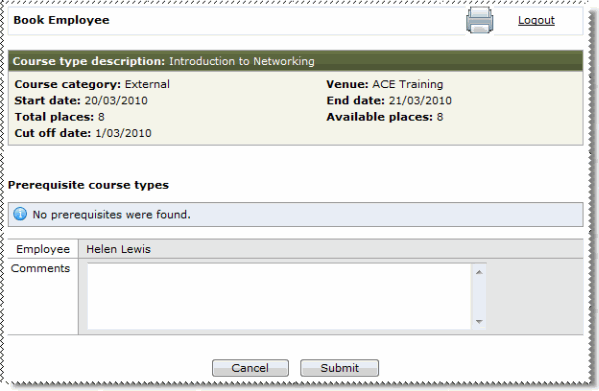
Course prerequisites not met If you have not met the course prerequisites, then the following message appears: You have not met all of the prerequisites for doing this course. Please enter any remarks in the comments field. You can enter your reason for wanting to attend the course without completing the course prerequisites. For example, you are booked to attend the prerequisite course, but have not yet completed it. |
Your manager will approve or decline your request.
If your booking request is declined, then you will receive an email to notify you.
If your booking request is approved:
|
|
|
 |
Topic: 28198


