|
|
|
|
|
|
The following example explains how to set up a Leave delegation.
The Edit Delegations page appears.
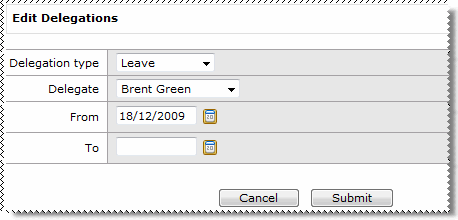
Field Name |
Description |
|---|---|
Delegate type |
Select the area of responsibility that you want to delegate, such as "Leave". Your Self-Service administrator sets up the options that are available to you in the Delegate type list. |
Delegate |
Select the name of the person you want to delegate the authority to. - Your manager - Your colleagues. Employees who also report directly to your manager as defined by the organisational chart. - Employees who report to you. |
From To |
Select the effective dates for the delegation. |
The new delegate is displayed for Delegation type = Leave.
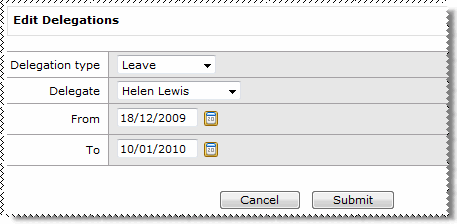
The new delegate appears in the Edit Delegations grid.
The leave approver will receive the following communications:
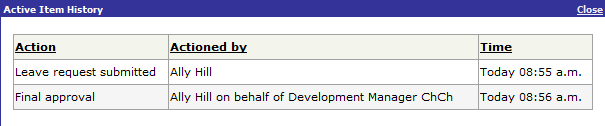
Can delegates approve their own requests? If you delegate your leave authority to an employee who reports to you, then they will be able to approve their own leave requests. You can track the requests that the delegate has actioned using your Active Items. On the Active Items | History tab, click the History link to view who actioned the item. The image below shows Ally Hill has approved her own request.
|
|
|
|
 |
Topic: 28323