|
|
|
|
|
|
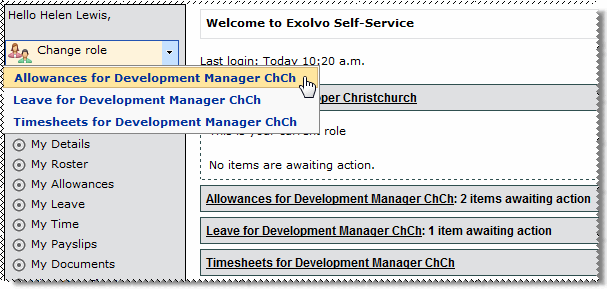
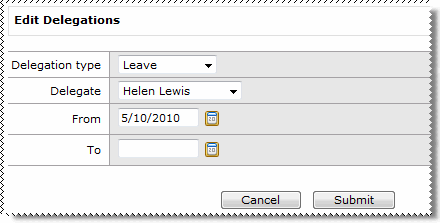
If you are set up as a delegate, then the Change role section appears above the navigation menu and the delegated role is displayed in an expanding row on your home page. The delegation is active when the current date falls within the From and To dates set on the Edit Delegations form.
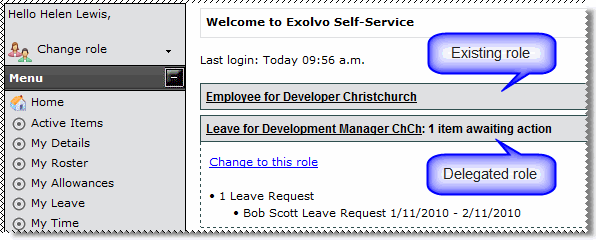
When you select a role, you assume that role. The web pages are dynamically updated so that you see only the pages relative to that role.
For example, Craig Street (the Development Manager) completes and submits the following Leave delegation for Helen Lewis:
When Helen logs on to ESS after 05/10/2010:
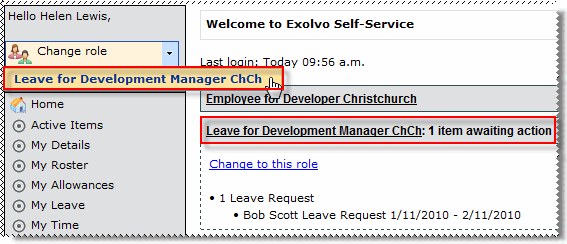
When Helen changes to the Leave for Development Manager ChCh role, she assumes Craig Street’s leave role. However, she can only see Craig’s Active items and Employee leave options (shown below). Your Self-Service administrator sets up the options that are available to delegates.
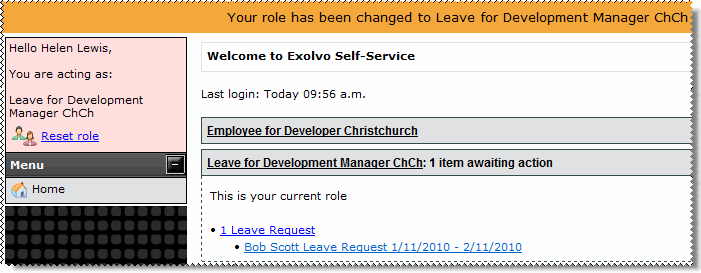
To resume her own role, Helen clicks the Reset role link or selects her role on the home page. The Change role section now displays Helen's own role and the Change role link.
Multiple roles Managers can delegate multiple roles to an employee. When a delegate opens the Change role lookup, the list displays all of the roles assigned to them. All of the employee's assigned roles are displayed in expanding rows on the homepage.
|
|
|
|
 |
Topic: 30173