|
|
|
|
|
|
On the Team Calendar tab you can select a layout to display specific information, such as viewing all unapproved sick leave. If the layouts available do not display the information that you require, then you can click the Copy link at the top-right of the page to copy the layout so you can customise and save the layout. Layouts that you customise and save will only be available to you.
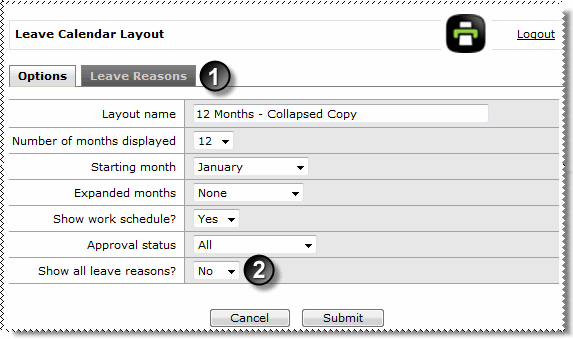
When you click the Copy link, the Leave Calendar Layout page appears.
|
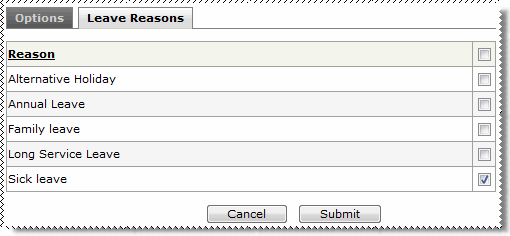
Leave Reasons tab is displayed when Show all leave reasons = "No". |
|
Show all Leave reasons = "No" |
The following table explains the Leave Calendar Layout page.
Option |
Details |
Layout name |
Displays the name of the layout that you copied. Company level layouts normally start with "(Company)", so if you copy a company layout, the "(Company)" section of the name is removed and "copy" is appended to the name. You can change the layout name as required because nobody else will see your layout. |
Number of months displayed |
The number of months that the layout will display. The options are: 1,2,3,4,6,9,12. |
Starting month |
The first month that the layout will display. The options are: January, Previous month, Current month, Next month. |
Expanded months |
The months that the layout will automatically expand. The options are: None, Current month, All. |
Show work schedule? |
Yes/No field that controls whether the calendar displays the work schedule (green bars). |
Approval status |
The approval status that the layout will display. The options are: All, Unapproved only, Approved only. |
Show all leave reasons? |
Yes/No field that controls whether the layout displays all leave reasons or the leave reasons that you select. When Show all leave reasons = No, the Leave Reasons tab is displayed. Click the checkboxes for the leave reasons that you want to display. |
|
|
Submit |
Click Submit to save the changes to your layout. |
When you view a layout that you have copied, Edit and Delete links appear beside the Copy link so you can change the layout or delete it.
|
|
|
 |
Topic: 28924