

|
|
|
|
|
|
When you click a day on the Calendar tab, Team Calendar tab or an employee's timesheet that is highlighted as a leave item, a popup appears. The popup displays more information about the leave item and links that you can use to manage the item.
The links that are available depend on the state of the leave item. The following images show examples of popups.
Note: The links on the popups take you to the same pages as when you click the icons in the corresponding section of the Requests tab page. However, if your company uses immediate approval and decline, then the item is actioned while you remain on the Team Calendar page.
Unapproved leave
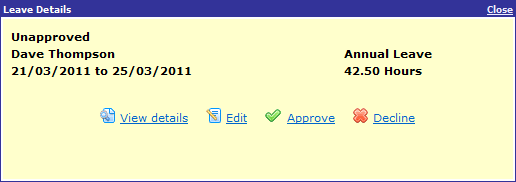
Approved leave - unpaid
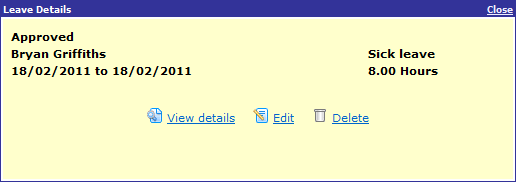
Approved leave - partially paid
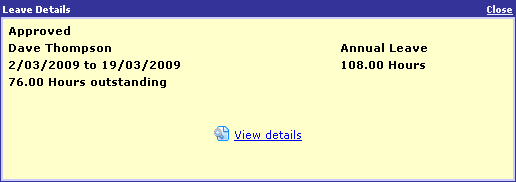
Approved leave - paid

Leave pending further approval
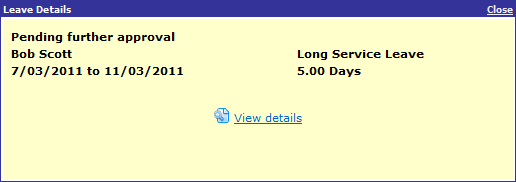
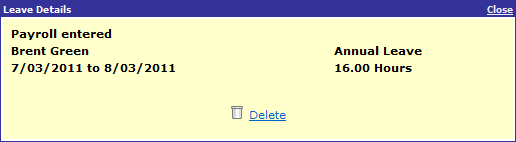
Payroll entered (in PayGlobal)
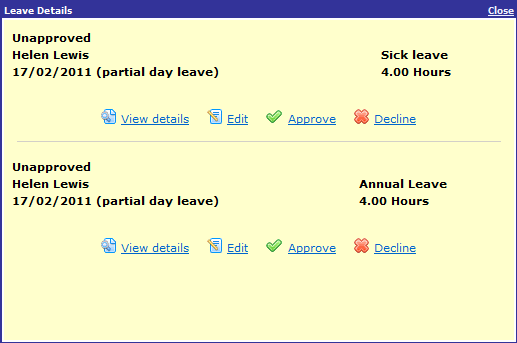
Multiple requests
|
|
|
 |
Topic: 41045


