|
|
|
|
|
|
The following table explains the colours and information displayed on the calendar and roster.
Colour |
Details |
||||
|---|---|---|---|---|---|
|
Calendar only. Days that you are scheduled to work. If you need to key your hours, then every day may show the green band (public holidays are controlled by PayGlobal settings). |
||||
|
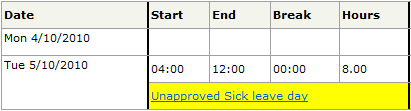
Days you have applied for leave. On the calendar:
Leave for 1 or more full days While the request is unapproved, the yellow Unapproved leave day cell is displayed below the day that the request is for.
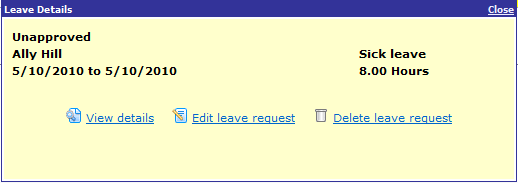
You can click the Unapproved leave day link to edit or delete the request. The options that you see on the popup depend on the state of the request and your security.
When your manager approves the leave request, the yellow Approved leave day message overlays the day that the request is for and the View original roster icon appears. Click this icon to see the hours that you were scheduled to work.
Leave for less than 1 full day The leave link for a partial days leave shows the details of the request. The yellow cell is always displayed below the day that the request is for so you can see the hours that you were scheduled to work.
|
||||
|
Weekends and public holidays. |
||||
U |
Calendar only. Dates that are outside the date range that you can view your roster. |
|
|
|
 |
Topic: 29306