

|
|
|
|
|
|
When you click Cessation in the menu, ESS displays an employee lookup of the employees that report to you.
The Cessation Details page appears.
Note: Mandatory fields are marked with an asterisk (*).
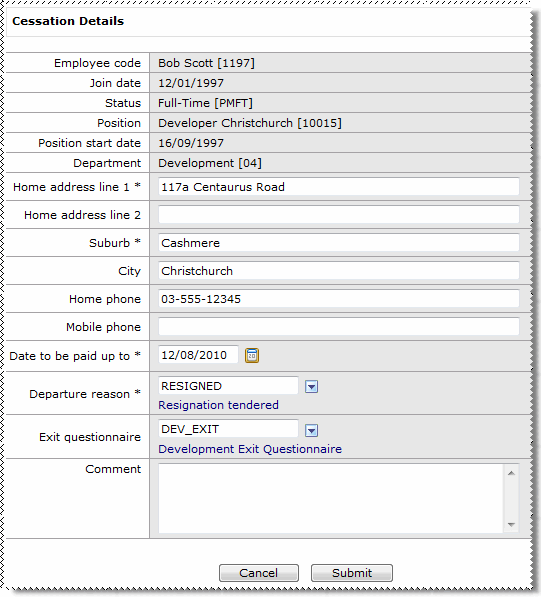
Field Name |
Description |
|
|---|---|---|
Employee code |
When you select an employee, these fields are populated from the employee’s record. The Join date is the employee’s Start date. The Position start date is copied from Appointments | Planned Dates | Commencement Date in the employee’s record. |
|
|
||
Join date |
||
Status |
||
Position |
||
Position start date |
||
Department |
||
Home address line 1 * |
||
Home address line 2 |
||
Suburb* |
||
City |
||
Home phone |
You must provide at least one of these phone numbers. |
|
Mobile phone |
||
Date to be paid up to* |
Type the date that the employee is paid up to, which must include paid or unpaid leave taken during the notice period. |
|
Note: The employee will no longer be able to log on to ESS after the Date to be paid up to date unless your ESS is configured to allow terminated employees to access ESS. If you want an employee to complete an exit questionnaire, then you must complete the cessation early enough to allow the employee to complete the questionnaire while they can still log on. |
||
Departure reason* |
Select the employee’s reason for leaving the company. For example: Resignation Redundancy Terminated Retirement Deceased. |
|
Exit questionnaire |
Select the applicable exit questionnaire. |
|
Comment |
Type additional information about the cessation. |
|
Note: You can edit cessation details for an employee that you have already terminated if their Date to be paid up to date is still in the future (when the date is reached, the employee will no longer be visible in the list).
When you edit an employee with a Date to be paid up to date, the following message appears at the top of the page:
The ‘Date to be paid up to’ field is already completed for this employee. Please check the details below and update as required.
|
|
|
 |
Topic: 32257


