

|
|
|
|
|
|
Note: Document grids are set up by your ESS administrator so the forms that they appear on are company specific. You may not have access to all of the functionality explained below.
Some forms may have a documents section.
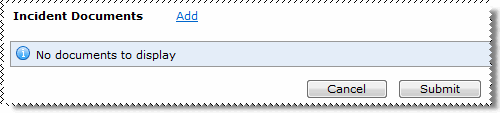
When a document has been uploaded to ESS, the document name appears as a link in the grid.

You have the following functionality.
|
If you have add permissions, then you can add a document. |
|
If you have view permissions then the document link is active |
|
If you have delete permissions, then you can delete the document. |
To add a document:
 link.
link.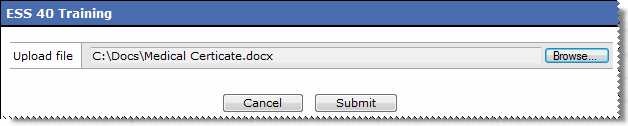
The document appears in the grid (shown in the image above).
If you attempt to upload an unsupported file type, you will receive an error.
|
|
|
 |
Topic: 34374



