

|
|
|
|
|
|
The My Documents section displays the folders and documents that the Self-Service administrator makes available. You can view and download these documents, but you cannot add, edit, or delete documents. Only the Self-Service administrator or payroll user can add or remove ESS documents.
Note: My Payslips in the navigation menu is a shortcut to the Payslips folder in My Documents.
A list of folders appears.
Note: The folders and documents that you view are specific to your company.
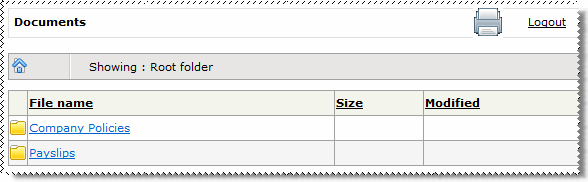
The folder opens to show the documents or sub-folders.
Note: Documents are sorted in date order with the newest document at the top.
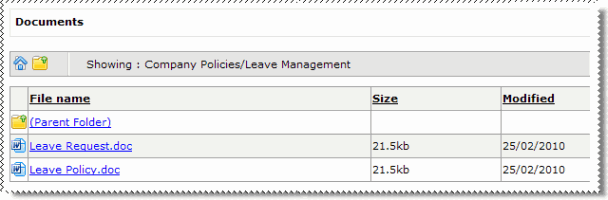
The document opens in a new browser window. Depending on your browser configuration, you may be asked if you want to Open or Save the document.
Note: The document may open within your current browser window, depending on how your site has been configured.
Do not right-click the document and select Save Target As, because the document will not be saved correctly.
 |
Topic: 40888


