

|
|
|
|
|
|
You can use this section to view and record the items that have been issued to employees.
To record an item that has been assigned to an employee:
Issued items displays any items that have already been assigned to the employee.
 beside the Issued Items heading.
The Enter Issued Item form appears.
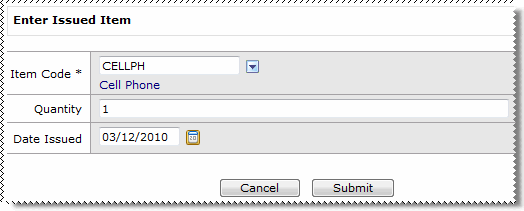
The item appears in the Issued Items grid.
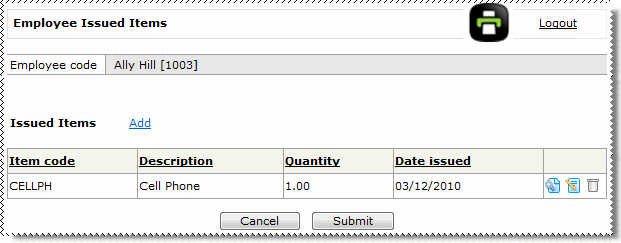
A message appears: Workflow has been submitted successfully.
Important: After you submit a new issued item, the employee record is not updated until you click the Submit button below the Issued Items grid.
The employee can also view the item in ESS when they click their My Issued Items menu item.
|
|
|
 |
Topic: 34397


