

|
|
|
|
|
|
If you can see checkboxes beside the Leave reason column, and the Approve all and Decline all links, then you can use Bulk approve and Bulk decline.
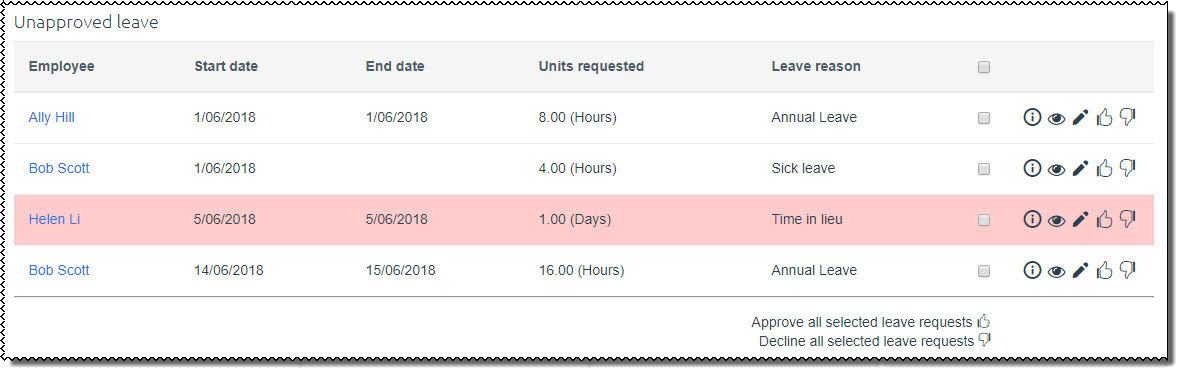
Bulk approve and Bulk decline allow you to approve or decline multiple leave requests at a time.
Bulk approval
Use the following procedure to use bulk approval.
If you are unsure of any of the leave requests, then click the View icon to view the details of the request.
All of the selected leave requests are approved. This procedure has the same effect as approving the requests individually using the Approve  icon. For example, emails are sent, the PayGlobal database is updated, and requests go for higher approval if required.
An action message appears below the header: x leave request(s) were successfully approved.
Note: If an error occurs while the requests are being approved:
- the leave requests that can be approved are approved.
- the requests that cannot be approved will remain in the Unapproved leave section and a message will notify the user that some leave requests could not be approved.
Bulk decline
Follow the same procedure as above to use bulk decline.
You must enter a Decline reason or you will get an error when you attempt the submit the form. If you want to enter different decline reasons, then you need to decline the requests individually.
|
|
|
 |
Topic: 35506


