

|
|
|
|
|
|
You must action the leave requests that are displayed in the Unapproved leave section.
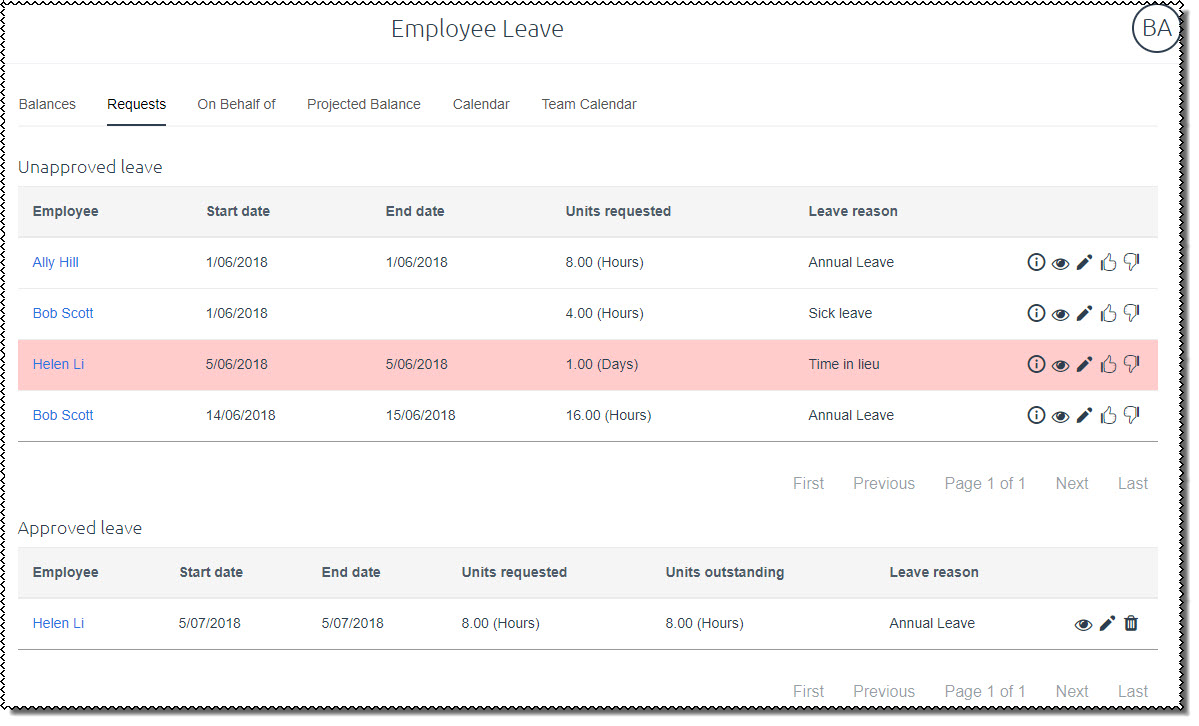
Note: If you can see checkboxes beside the Leave reason column, then see Bulk Approve and Decline.
You can click the Info icon beside an employee's request to view leave information for the employee (shown below).
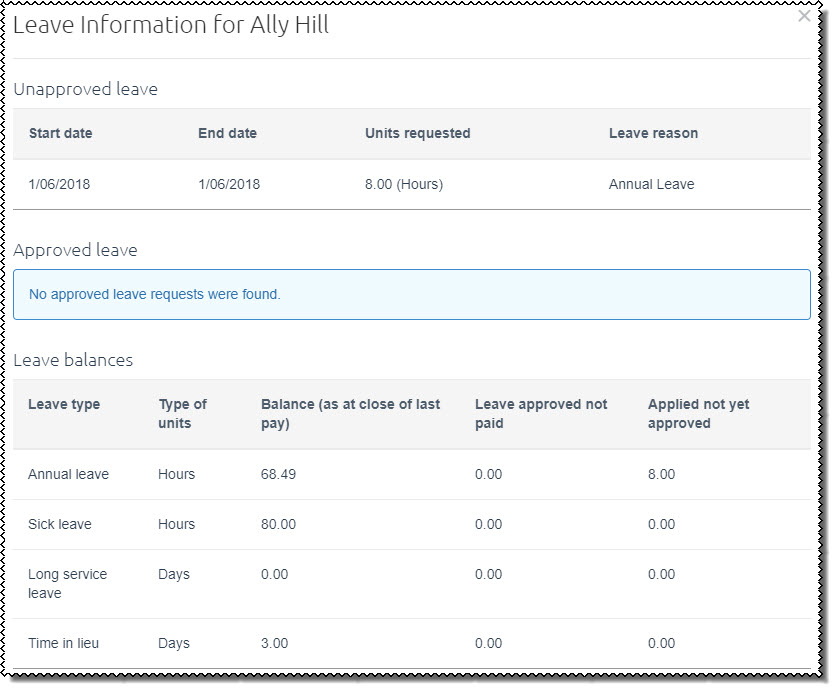
The following example explains how to approve an employee’s leave request (if you want to decline a request, then see Declining a Leave Request).
Note: If your company is using the "immediate approval" functionality, then the request is approved as soon as you click the Approve icon. However, if you click the leave request in Active Items, then the approve Leave Request form still opens (shown below), and you need to click Approve at the bottom of the form.
The approve Leave Request form appears. This read-only form shows you details of the employee’s leave request.
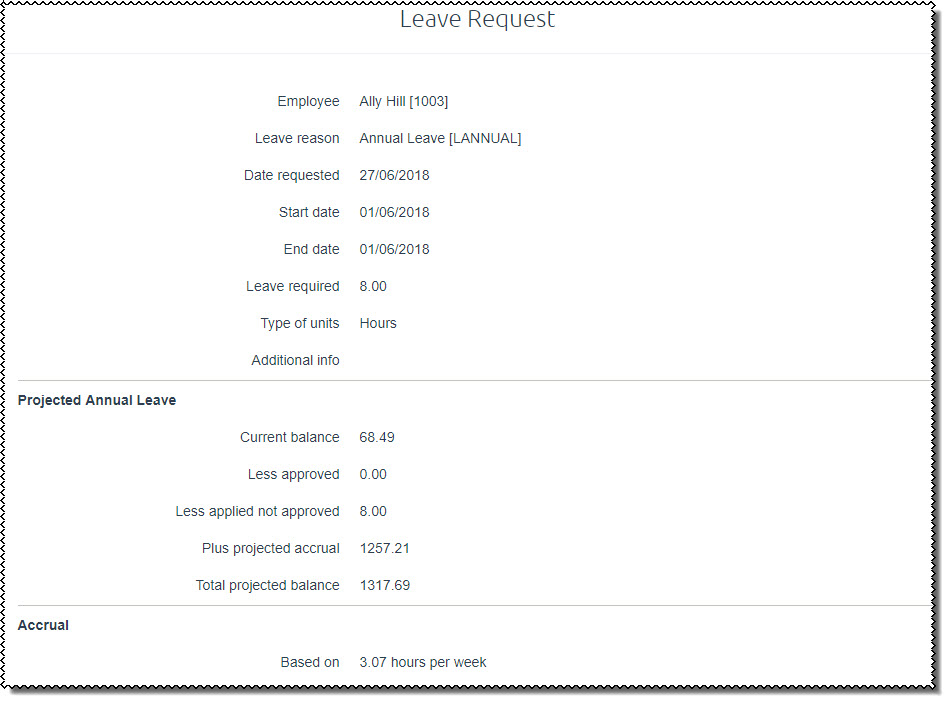
Note: The Projected Annual Leave section is displayed for employees with period Frequency = Weekly, Fortnightly, Bi-Monthly or Monthly only (not 4-weekly or varialbe).
If the request is for a partial day’s leave, then:
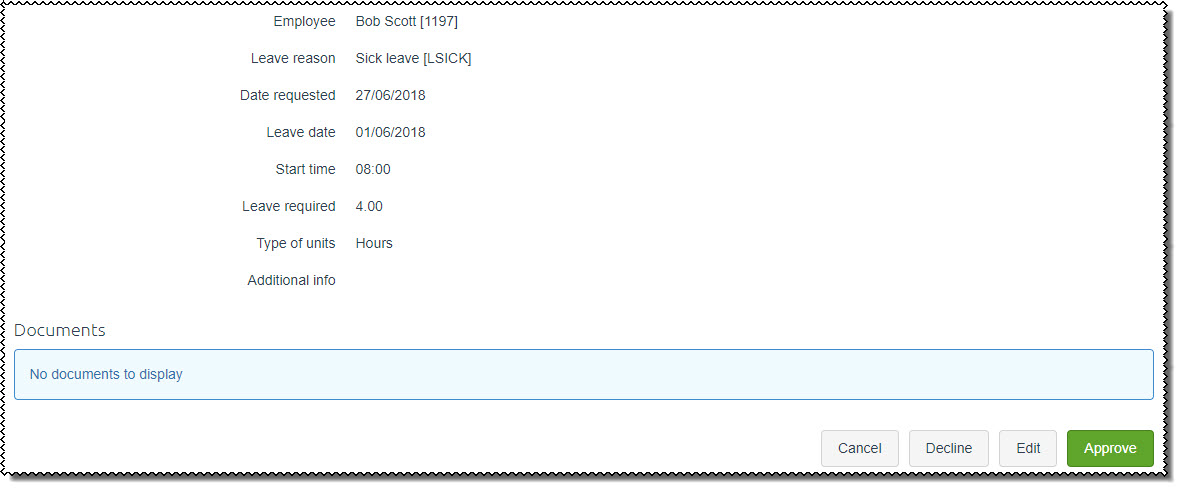
Note: You can edit a request before you approve it. See Editing a Leave Request.
If only one level of approval is required, then the following processes occur:
Higher Approval
If higher approval is required, then the following processes occur:
This section is displayed only when there are requests requiring further approval.
 |
Topic: 38338


