

|
|
|
|
|
|
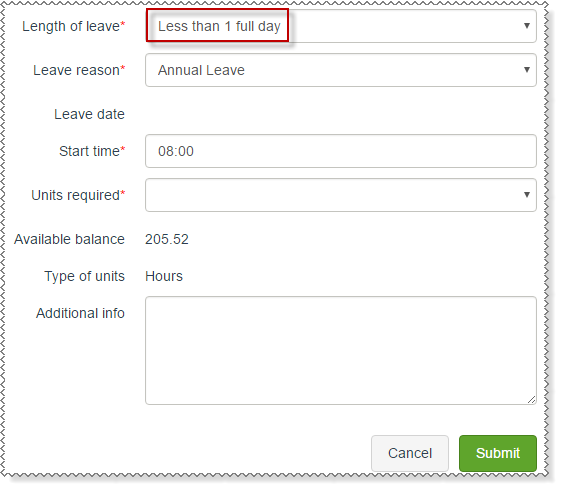
The following process explains how to complete a leave request for Less than 1 full day.
The following fields are updated:
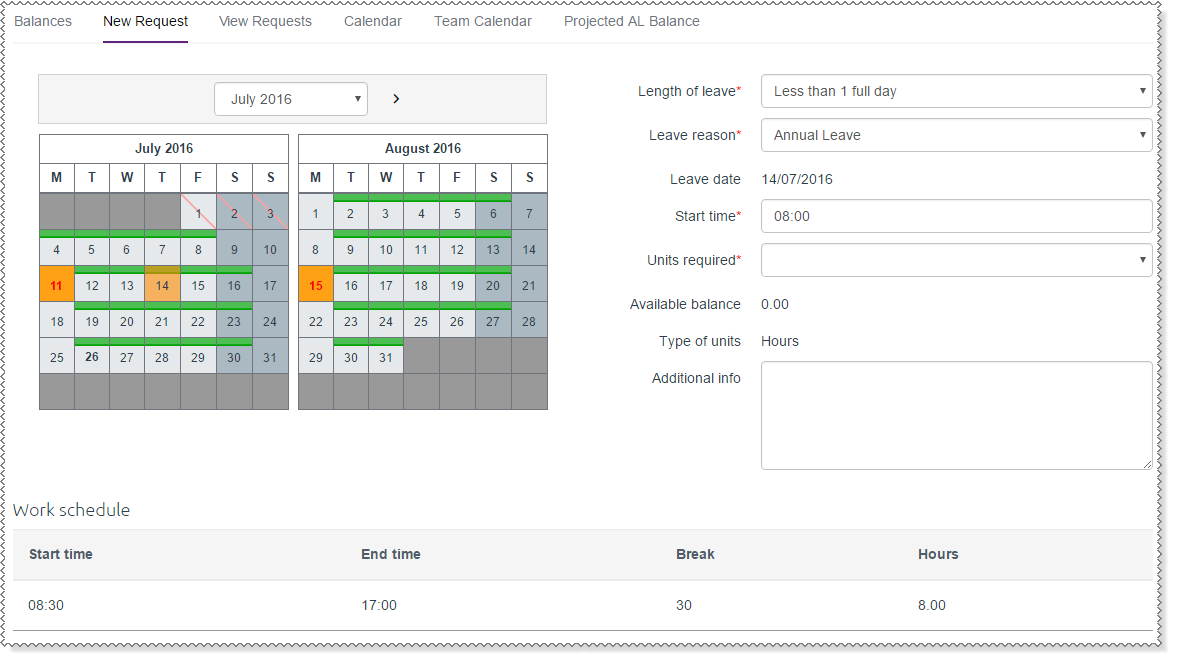
For more information about the symbols that may be displayed, see  Calendar symbols.
The values in the Units required combo list are specific to your company. They may be hourly values or daily values, such as "Quarter", "Half", or "Three-quarters".
IMPORTANT: If you have rostered hours with a break that is automatically applied after X hours and the time you are away intersects when the break would have taken place, then the system will subtract the break amount from the units you requested. This ensures that an employee is not paid for more hours than they were otherwise rostered to work. However, if the time the break is taken changes or its a special case whereby the employee is expected to be paid leave exclusive of the break, then those adjustments must be handled manually within PayGlobal's Daily View or Transaction View.
Your leave request is submitted to you manager.
Note: At this point Payroll does not contain any record of your annual leave request. Your manager must approve your leave request before it can be processed by Payroll.
Your manager will approve or decline your leave request and you are notified of their decision by email.
|
|
|
 |
Topic: 35807


