|
|
|
|
|
|
The Unapproved tab appears, which automatically displays allowances for all employees.
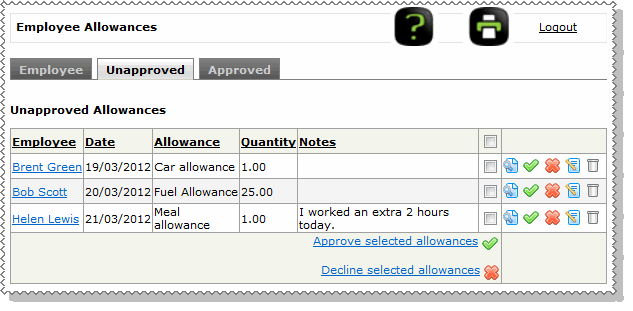
You have the following options:
|
View this allowance before you approve or decline it. |
|
Approve this allowance. |
|
Decline this allowance. When you decline an allowance, you must enter a Decline reason. |
|
Edit this allowance. |
|
Delete this allowance. |
|
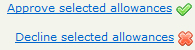
If you want to approve or decline multiple allowances, then use the checkboxes to select which allowances you want to approve or decline. For example, if there are five allowances, but you only want to approve three, then ensure only those three have the Selected checkbox ticked when you click Approve selected allowances. If you want to select or deselect all of the checkboxes, then click the Select all checkbox in the header. When you decline an allowance, you must enter a Decline reason. If you decline multiple allowances, then they will all have the same decline reason. If they should have different decline reasons, then use the Decline this allowance icon to decline the allowances separately. |
When you approve an allowance:
When you decline an allowance:
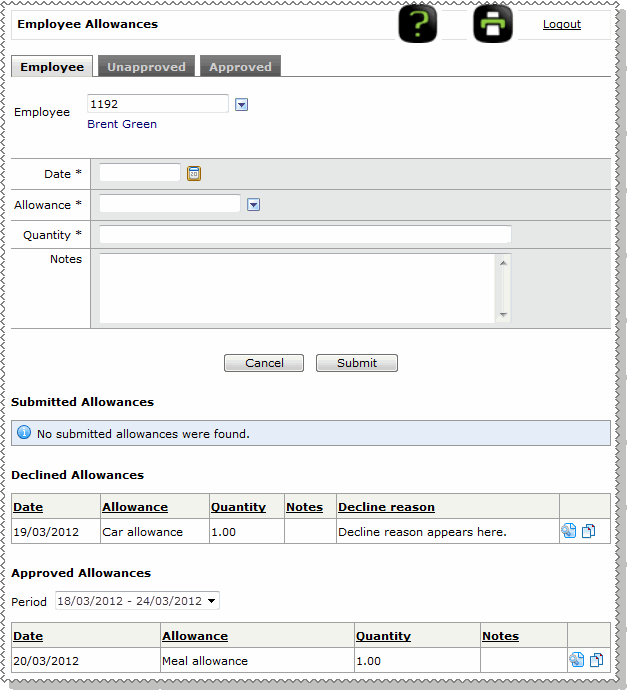
The employee must correct their allowance and then resubmit it.
|
|
|
 |
Topic: 38463