

|
|
|
|
|
|
Would you like to watch the Manager's Performance Reviews video? You must be connected to the internet. When you view a video, you can press Ctrl and use your mouse scroll wheel to resize the video. You should be able to see the controls at the bottom of the screen, which allow you to pause or rewind the video. |
|
After the Performance Admin has generated performance reviews, you can:
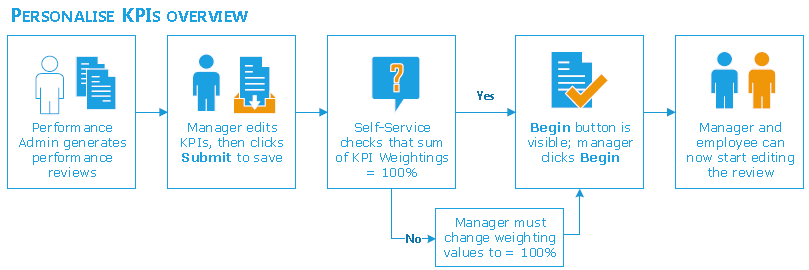
When the reviews have been created, you are notified by email, and a link to each review is displayed on your homepage. The link shows the status "In Preparation". For example, Ally Hill Performance review - January 2014 - In Preparation.
You do not need to actually edit every performance review, but your employees cannot make a start until you open their review, and click Begin.
To prepare an employee's review:
If you do not want to edit the review, then you can simply click Begin to notify the employee that their review is ready.
|
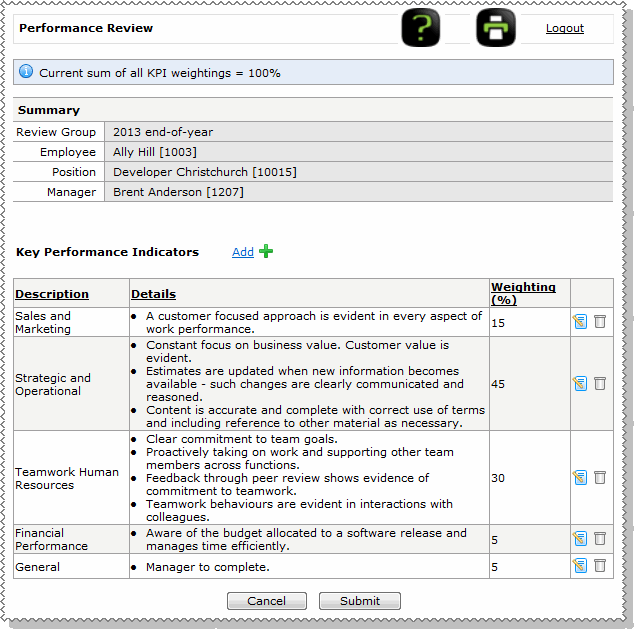
Add a new KPI record. |
|
Edit an existing KPI. For example, change the details, add another point, or change the weighting. |
Note: Weightings must equal 100%, so if you add or delete a KPI, then you must resize the existing weightings. |
|
|
Delete an existing KPI record. |
The employee will be notified by email, and on their homepage that they can start their performance review.
After you click Begin, you and the employee can start editing the performance review at the same time (see Review and edit employee performance review).
|
|
|
 |
Topic: 41505


