

|
|
|
|
|
|
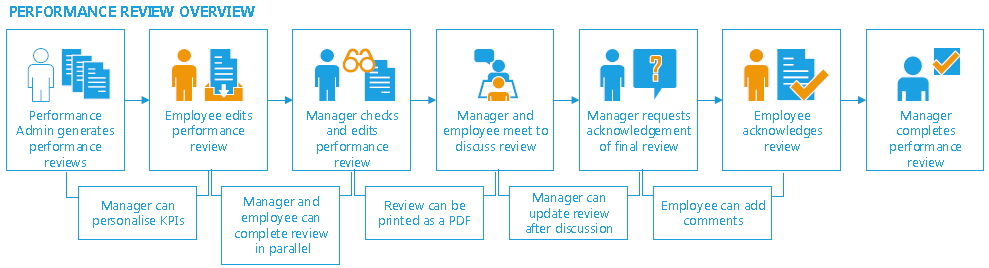
When you have prepared KPIs, you can start adding your scores and comments. The employee will not see your comments until they acknowledge the review (step 6 in the
 Performance Review Overview diagram). The performance review will not progress until the employee has completed their assessment and submitted it to you. When they submit it, you are notified by email, and a Performance Review link appears on your home page.
Note: If you open your performance review while your employee is editing it, you will get the following message: Record Locked: You cannot access this record because another user is editing it. Please try again later.
Note: You can click Save (at the bottom of the page) at any time to save your changes and come back to the review later.
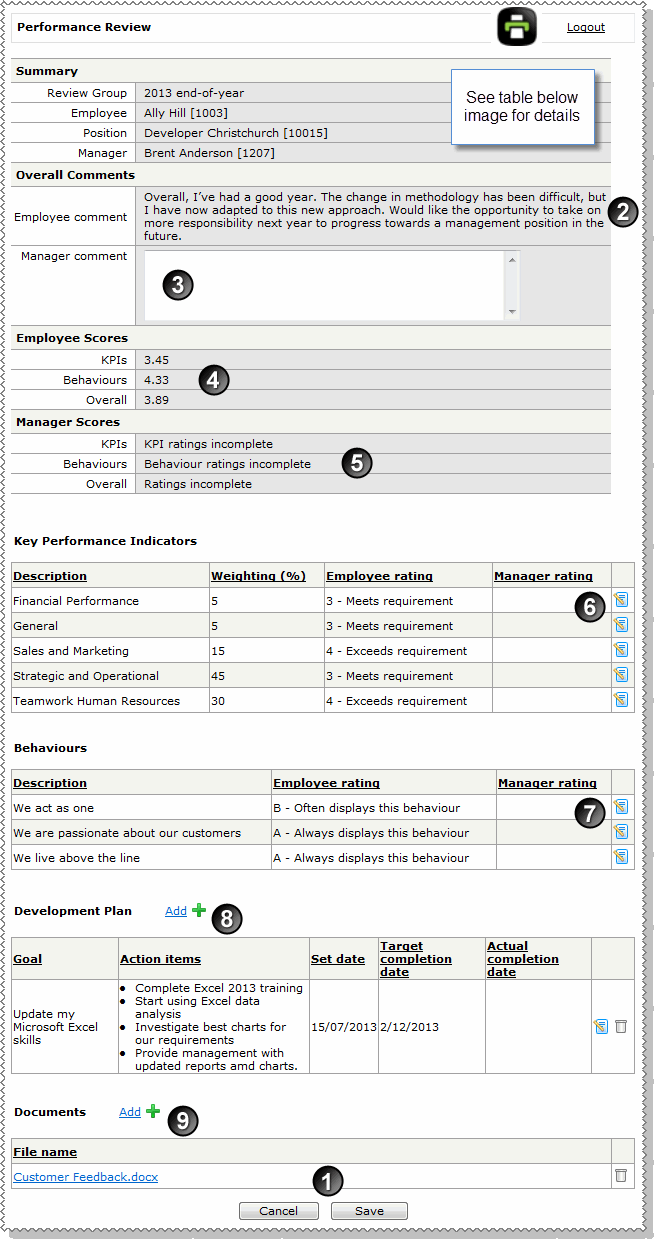
The different sections of the Performance Review page are explained in the following image and table below it.
|
The buttons at the bottom of the page will change depending on the status of the Performance Review. You must click the Edit button before you can start adding ratings and comments. The Edit button then changes to Save, to Request Acknowledgement, and then to Complete. |
|
Employee comment: Employee's overall comment about their performance. Employees can also add a comment to each Key Performance Indicator (KPI) and Behaviour record. |
|
Manager comment: Enter an overall comment about the employee's performance. You can also add a comment to each Key Performance Indicator (KPI) and Behaviour record ( |
|
Employee Scores - KPIs: This value is calculated when an employee has completed ratings for all of their KPIs. To see how this score is calculated, go to Employee - Submit performance review. - Employee Scores - Behaviours: This value is calculated when an employee has completed ratings for all of their behaviours. To see how this score is calculated, go to Employee - Submit performance review. - Employee Scores - Overall: When the employee completes all of their KPI and Behaviour ratings, ESS calculates an average of these two ratings. |
|
Manager Scores - KPIs: This field shows the Rating incomplete message until you have edited all of the Key Performance Indicator records and added ratings for the employee. When all of your ratings are complete, this field will display a calculated value. - Behaviours: This field shows the Rating incomplete message until you have edited all of the Key Performance Indicator records and added ratings for the employee. When all of your ratings are complete, this field will display a calculated value. Note: You cannot submit the performance review until you complete all of the KPI and Behaviour ratings. - Overall: When you have completed all of your KPI and Behaviour ratings, ESS calculates an average of these ratings. |
|
Key Performance Indicators: Edit and complete each KPI record. Click the edit icon |
|
Behaviours: Edit and complete each Behaviour record. Click the edit icon |
|
Development Plan: Review the employee's development plan. You can click the edit icon Goals without an Actual completion date will be carried over to the employee's next performance review. |
|
Documents: Click |
When you have completed all of your KPI and Behaviour ratings, the Complete Assessment button is visible.
 |
Topic: 41504




 and
and  ).
).

 beside each Key Performance Indicator record and then complete your rating and comment.
 to add additional goals to the employee's development plan.