

|
|
|
|
|
|
After you submit a request, your manager (second level manager) is notified by email.
The following example explains how the second level manager would approve the request.
Alternatively, you can click the New Position link on your homepage.
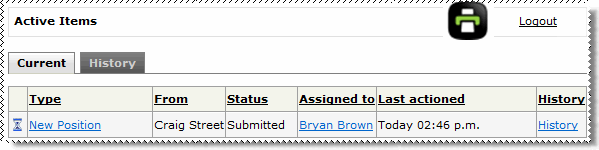
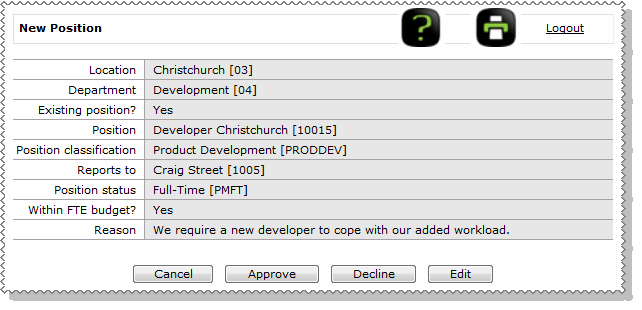
The New Position form appears.
In this example your manager has permission to edit and approve this request, so they see the Edit, Approve and Decline buttons.
Note: If you opened the request in your Active Items, then you would see a read-only copy of the Request form because you do not have approval permission.
|
|
|
 |
Topic: 41933


