

|
|
|
|
|
|
Note: If you click the Print icon at the top-right of the page, then you will print the organisation chart page that you are currently viewing on screen, not the organisation chart area.
Use the following procedure to print an organisational chart.
Note: The Print Organisation Chart functionality is not currently supported on Google Chrome on desktops or on any tablet browsers, therefore the button will be greyed out. To use this functionality please use another browser (Internet Explorer, Mozilla Firefox).
The ESS Print setup window appears.
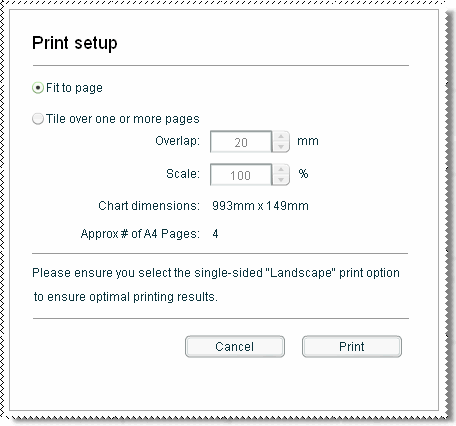
Option |
Details |
|
Fit to page |
Forces the chart to fit onto one page. |
|
Tile over one or more pages |
The chart is printed over multiple pages. Enables the Overlap and Scale options. |
|
|
Overlap |
Each page overlaps by the number of millimeters specified here. |
|
Scale |
You can scale the chart to control how large the printed chart will be. |
|
Chart dimensions |
The size of the printed chart based on the scale selected. |
|
Approx # of A4 Pages |
Indicates how many A4 pages will be required to print the chart using the current settings. This value is based on printing the chart in landscape orientation. |
The Windows Print setup window appears.
If the width of your chart is greater than its depth, then you need to change your printer orientation to Landscape.
Note: If photos are displayed on the org chart, they will not be included in the printed output.
|
|
|
 |
Topic: 9022


