

|
|
|
|
|
|
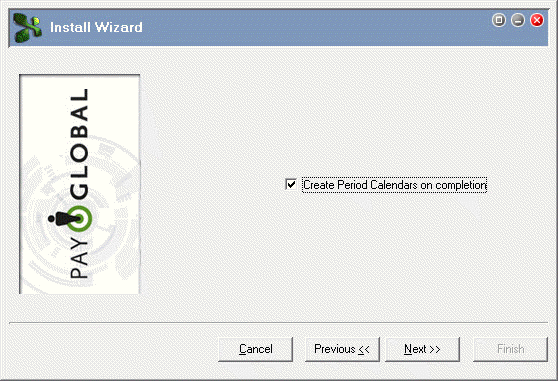
When you create a new database, the Install Wizard gives you the option to "Create Period Calendars on completion".
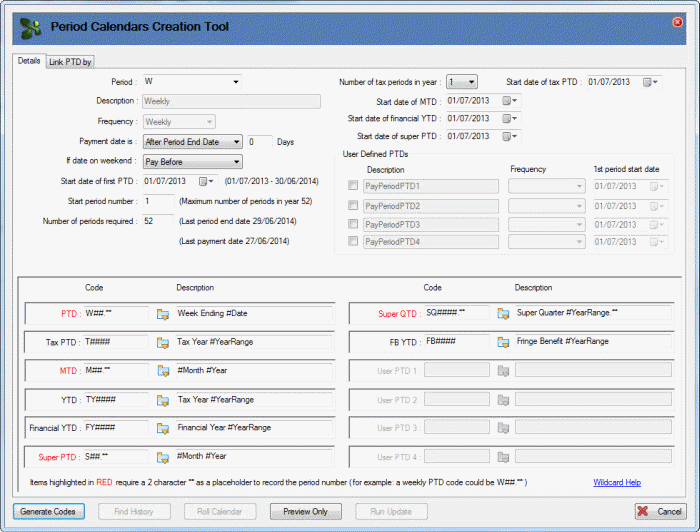
This example creates a 2013-2014 weekly period calendar for an Australian database.
Field |
Values |
Details tab |
|
Period |
W |
Description |
Weekly |
Frequency |
Weekly |
Payment date is |
After Period End Date |
Days |
0 |
If date on weekend |
Pay Before |
Start date of first PTD |
01/07/2013 |
Start period number |
1 |
Number of periods required |
52 |
Number of tax periods in year |
1 |
Start date of tax PTD |
01/07/2013 |
Start date of MTD |
01/07/2013 |
Start date of financial YTD |
01/07/2013 |
Start date of super PTD |
01/07/2013 |
Link PTD by tab |
|
Accept the default values |
|
The log shows the records, codes and calendar that will be created.
For example:
173 Period Sequence Calendar Details
174 --------------------------------
175
176 PTD Start Date End Date Pay Date Tax PTD MTD YTD Fin. YTD Super PTD Super QTD FB YTD
177 --------------------------------------------------------------------------------------------------------------------------------------------
178 W14.01 01/07/2013 07/07/2013 05/07/2013 T1314 M14.01 TY1314 FY1314 S14.01 SQ1314.01 FB1314
179 W14.02 08/07/2013 14/07/2013 12/07/2013 T1314 M14.01 TY1314 FY1314 S14.01 SQ1314.01 FB1314
180 W14.03 15/07/2013 21/07/2013 19/07/2013 T1314 M14.01 TY1314 FY1314 S14.01 SQ1314.01 FB1314
It also shows that no errors were found so the Run Update button is enabled.
231 CALENDAR WAS CREATED IN PREVIEW MODE ONLY - NO ERRORS WERE FOUND.
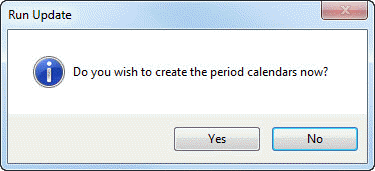
A message appears:
The log shows the records and codes that were created, and it contains the following messages at the end.
231 All details passed validation - creating calendar
232 -------------------------------------------------
233
234 CALENDAR WAS SUCCESSFULLY CREATED.
235 ----------------------------------
You could now repeat this process to create other period calendars, such as fortnightly or monthly.
Note: If the other period calendars are similar to the first, you could use Find History to load settings for the first period calendar and then change the settings as required. See Create 'Duplicate' Calendar.
The Preview Only log will show that most records already exist. For example:
65 Period MTDs Entity Details
66 --------------------------
67
68 Code Description Start Date End Date
69 ----------------------------------------------------------------------------------------
70 M14.01 July 2013 01/07/2013 31/07/2013 (Period already exists)
71 M14.02 August 2013 01/08/2013 31/08/2013 (Period already exists)
|
|
|
 |
Topic: 34075


