

|
|
|
|
|
|
To prepare for the end of the tax year, you need to create next year's calendar.
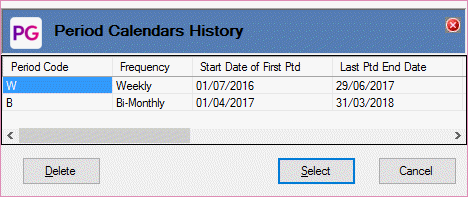
Note: Alternatively, you could start the Period Calendars Creation Tool, select Period = W and enter the required values.
In this example, you are creating a weekly Period Calendar for 2014-2015.
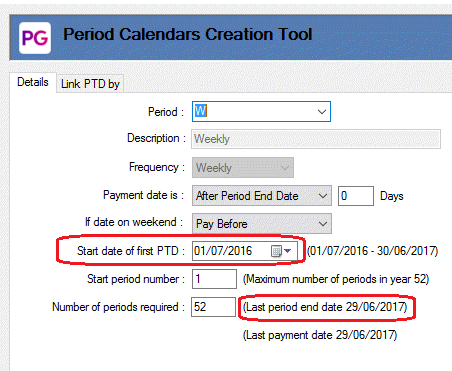
For example, for 2013-2014 the Start date of first PTD was 01/07/2013 so the Period Calendars Creation Tool shows that the Last period end date was 29/06/2014.
When you click the Roll Calendar button, the tool changes Start date of first PTD to 30/06/2014 to ensure that no gaps occur between the 2013-2014 and 2014-2015 calendars, and it changes the Last period end date to 28/06/2015.
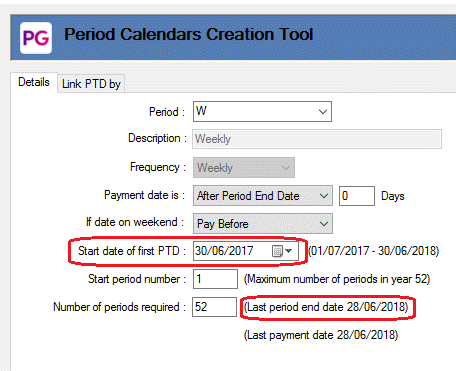
You do not need to update other Start date values, such as Start date of MTD and Start date of financial YTD because the tool calculates them correctly based on the Start date of first PTD value. However, if any Code fields contain set values instead of wildcards, then you would need to update them.
|
|
|
 |
Topic: 34079


