

|
|
|
|
|
|
In this example, you have just processed and closed Standard Pay # W/1, and now you need to open a manual pay to add some irregular transactions.

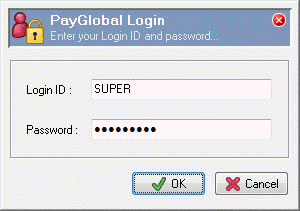
The PayGlobal Login box appears. In this example, you will log on as the SUPER user and your password is "PAYGLOBAL".
Field |
Value |
Login ID |
SUPER |
Note: The Login ID defaults to upper case. |
|
Password |
PAYGLOBAL |
Note: Passwords are case sensitive. |
|
The main window appears.
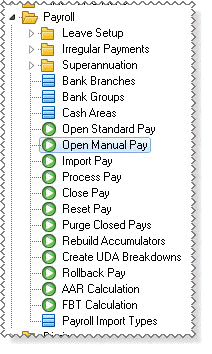
Note: In this example, you can open a manual pay because you have already opened a standard pay.
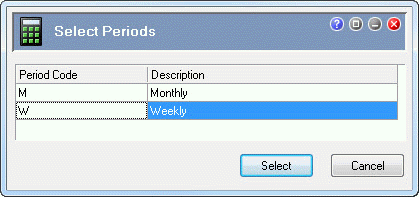
The Select Periods list appears.
An audit log Confirm message appears.
The audit log shows that you successfully opened Manual Pay # 2.
PayGlobal
MANUAL PAY OPENING PROCEDURES Audit Log
TREETOP LIMITED User:SUPER
Started on Tuesday, August 6, 2013, at 03:56:02 PM Ver:4.9.0.0
--------------------------------------------------------------------------------
1
2 Weekly manual pay opening procedures COMMENCED
3 -------------------------------------------------------------------------
4 Manual Pay # 2 created
5 Manual pay opening procedures SUCCESSFUL
--------------------------------------------------------------------------------
Number of lines : 5 Filename : Manual_Pay_Opening_Procedures__SUPER_45B.TXT
Completed on Tuesday, August 6, 2013, at 03:56:03 PM
--------------------------------------------------------------------------------
|
|
|
 |
Topic: 39189


