

|
|
|
|
|
|
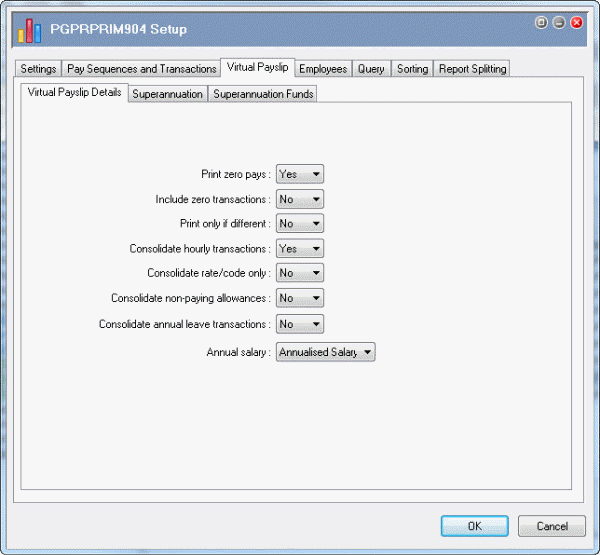
The Virtual Payslip sub-tabs allow you to determine the level of detail and superannuation information displayed in the report.
Field |
Value |
Details |
|---|---|---|
Print zero pays |
Yes |
Report will include payslips for employees whose transaction totals are all equal to zero. |
Include zero transactions |
No |
Report will not include transactions that have a total amount equal to zero. |
Print only if different |
No |
This Yes/No field determines whether the report generates a payslip for the employee when their current nett pay is equal to their previous nett pay. |
Consolidate hourly transactions |
Yes |
Report will display H-type allowances for the same employee, pay sequence, allowance, rate, award and transaction text as one consolidated transaction. |
Consolidate rate/code only |
No |
If this field was "Yes", the report would consolidate allowances or deductions with the same codes. |
If an allowance or deduction code occurred many times in a pay sequence, the report would show only one consolidated total for that code. If the factor differed, the report would consolidate the code, but if the rates differed, the codes would not be consolidated. |
||
Consolidate non-paying allowances |
No |
Report will not consolidate non-paying allowances. |
Consolidate leave transactions |
No |
Report will not consolidate the employee's annual leave, long service leave and leave credits paid transactions. |
Annual salary |
Annualised Salary |
Mandatory field for companies covered by WorkChoices that pay employees at an annual rate. |
You can select checkboxes on the Employees sub-tab pages for specific departments, locations, regions, and districts that require payslips. Leave these checkboxes unchecked to run the report for all departments, locations, regions, and districts.
|
|
|
 |
Topic: 16585


