Attach Payroll Rule
Now you need to attach the payroll rule to the relevant internal company.
Note: You can also attach payroll rules to awards and periods.
This example attaches S.01 - All Allowances and Deductions to the TreeTop Limited internal company.
- In the Internal Companies grid, double-click TTLTD.
- On the Payroll Rules tab, click Edit.
- Press Insert to see the Select Payroll Rules window.
- Click the checkbox for the S.01 - All Allowances and Deductions payroll rule to attach it to the TreeTop Limited internal company.
- Click OK to return to the Payroll Rules tab.
- Double-click S.01 - All Allowances and Deductions to see the View Internal Companies Payroll Rule Makeups | Details tab.
- Click in the Evaluate rule before field, and then select Z. Finalisation (rule is used after processing).
Note: You must follow best practice ranking recommendations when you set up payroll rules.
- Superannuation allowance payroll rules: Rank = Z or ZE
- Other allowance payroll rules: Rank = A or G.
- Deductions payroll rules: Rank = P or S.
- Enter the relevant value in the Rank field.
- Click Save + Close to return to the Payroll Rules tab.
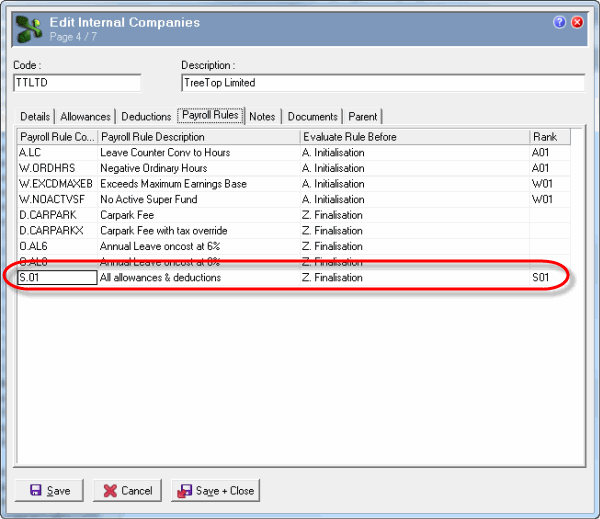
- Click Save + Close to return to the Internal Companies grid.
Topic: 11330