

|
|
|
|
|
|
This command imports timeband information from ESS.
Important: If you have multiple Pay Period Codes, then you will see import files for all periods when you Import Actual Timebands. Make sure that you import the correct file at the correct time.
You are on the main PayGlobal window.
The Import Actual Timebands window appears.
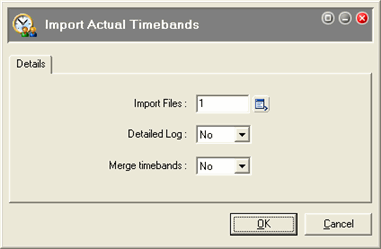
Select the timeband file that uses the format Tme*.CSV, such as Tme_W_433_20090426.csv.
Note: The file name uses the format:
Tme(timesheet)_[Period code]_[Sequence id]_[Payroll period end date].csv.
If you need to troubleshoot the import, then click Yes to see the import procedure details.
If you click Yes, then the imported timebands will merge with existing timebands.
|
|
|
 |
Topic: 26321


