

|
|
|
|
|
|
You are on the main PayGlobal window.
The Select Periods window appears.
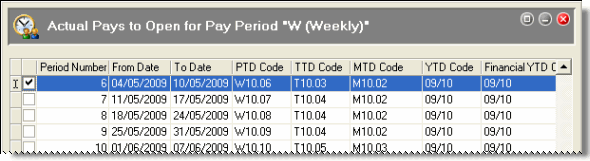
The Actual Pays to Open for Pay Period window appears.
Note: Open Actuals uses the same accumulators as the Period Calendar for your pay periods.
The Closed Pays to Purge from Current window appears.
You should purge closed pay periods for the pay period code that you are opening.
 to confirm the status of your Actual periods.
The Actual pay that you opened should appear on the TA Seq tab page with a red cross beside it. The red cross indicates that this Actual pay is open and unprocessed.
PayGlobal writes Actual pay information for the corresponding period to the CurrentActualTimeBand table in the database after an Actual Period is successfully opened. You can view this information in Daily View.
|
|
|
 |
Topic: 26375


