

|
|
|
|
|
|
You are on the main PayGlobal window.
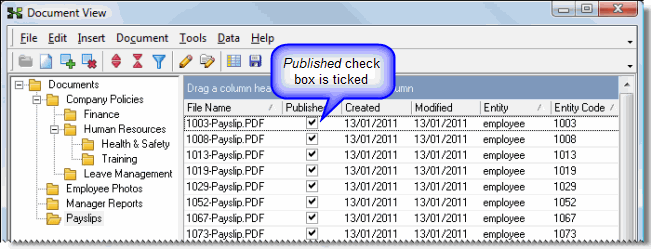
The Document View window appears.
The Published checkbox is ticked and the payslips are published to the ESS website. If the Published checkbox is not ticked, then see Generate Employee Pay Slip Report.
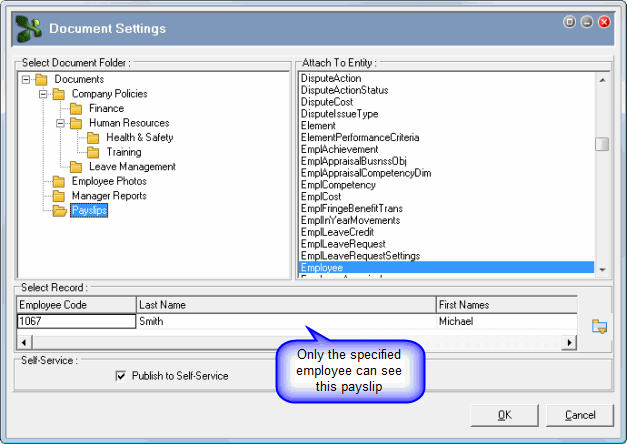
The Document Settings window shows that the report splitting process automatically selected:
Attach To Entity = Employee
Select Record = An employee code.
This process ensures that only the specified employee can see this payslip.
A Confirm box appears.
|
|
|
 |
Topic: 30180


