

|
|
|
|
|
|
Use break amount = Yes
The Break field is visible so employees can enter their break in this field.
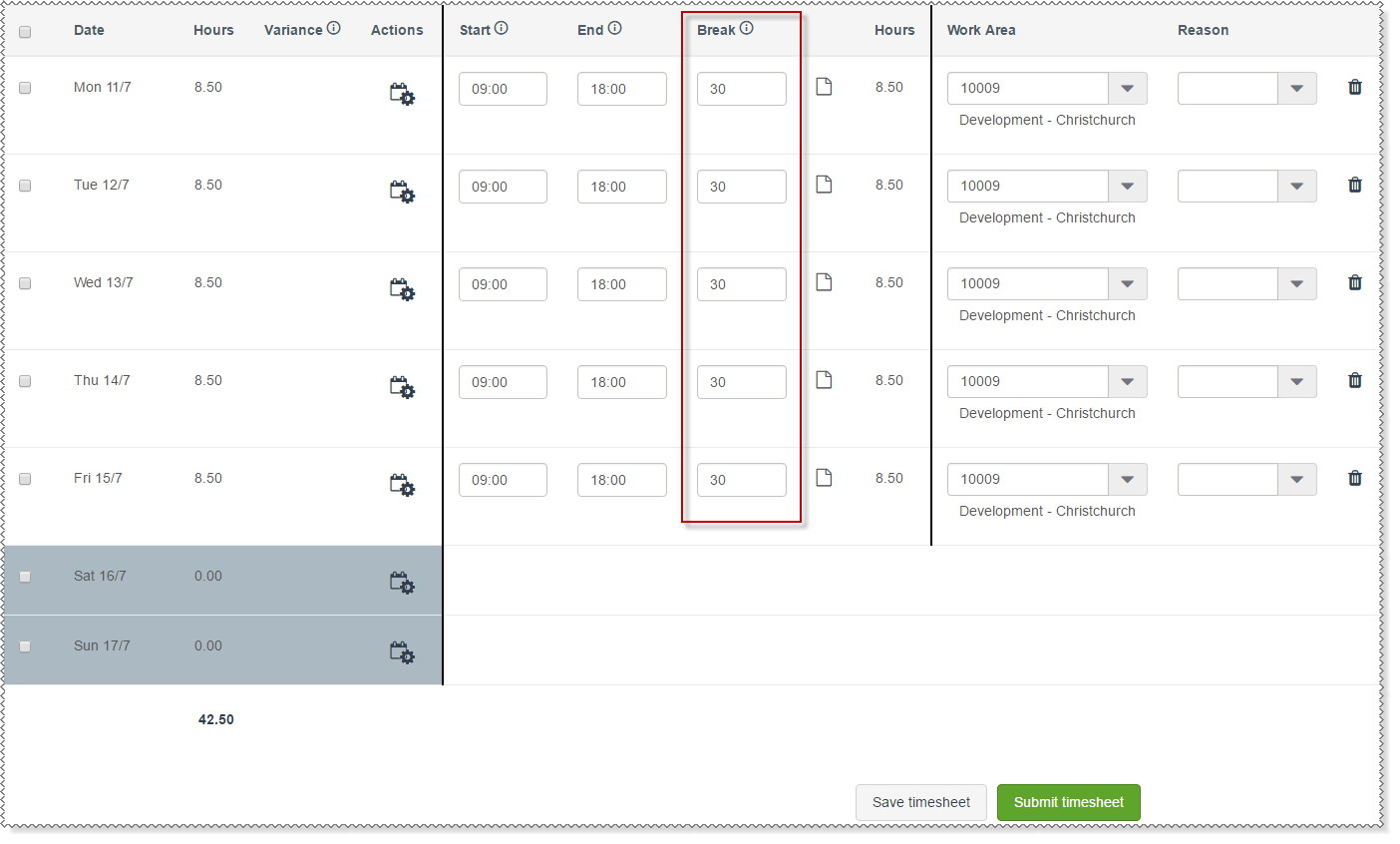
Note: When PayGlobal interprets a timeband with a break amount, the break is inserted at the start of the timeband. This functionality may not be suitable for customers who have awards that take into account when the employee took their break.
Use break amount = No
The Break field is not displayed on "2. Timebands by timesheet" type timesheets. If breaks are set up, then ESS automatically allows for breaks. Alternatively, employees can enter breaks by adding a timeband for each period that they worked and leave gaps in the timebands where they took their breaks.
Breaks are set up
PayGlobal uses two type of breaks:
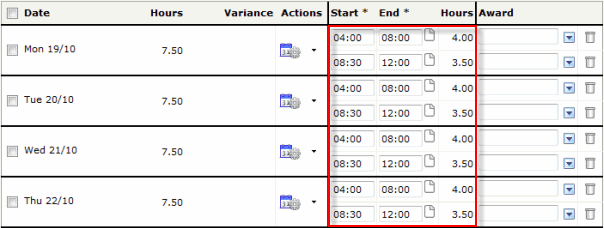
When breaks are set up and an employee's roster is copied to their timesheet, the timesheet is automatically split into rows with gaps left where the employee is expected to take a break (based on their break code).
For example, an employee's roster was set up with relative breaks using the following break record (give a 30 minute break after the employee works 4 hours).
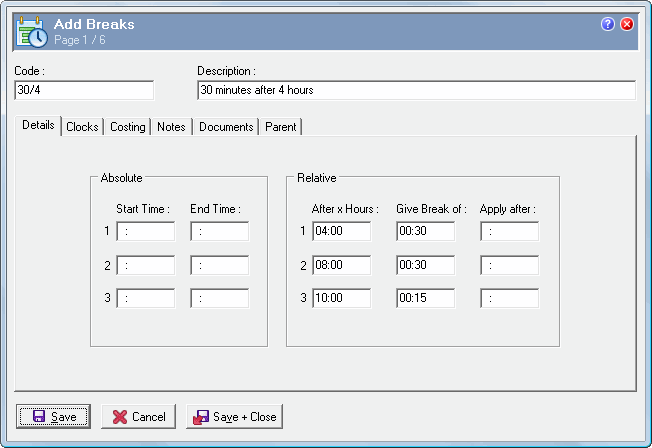
ESS has automatically split the employee's roster into timebands relative to their break. In this example, ESS has split the timeband after four hours and left a 30 minute gap (8:00 to 8:30) for the employee's break.
Breaks are not set up
If breaks are not set up, then employees can manually insert a break.
For example, a starting timesheet is shown below.
The Start and End times are highlighted pink to show that the employee has exceeded the Expect break after X hours setting without a break (see Options).
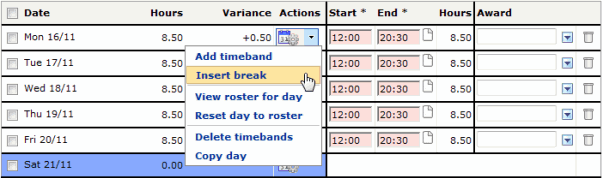
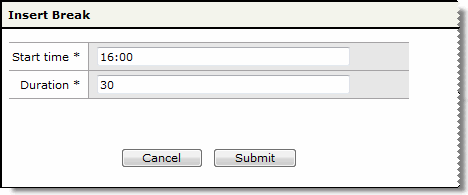
The Start time of their break becomes the end time of the first timeband. A gap is then left between the timebands equivalent to the duration entered.

|
|
|
 |
Topic: 34650


