

|
|
|
|
|
|
Important: The hours that employees are expected to work are stored in the cache. If you change an employee's roster after it is loaded into cache (the manager or employee has viewed the timesheet), then the manager must click the Refresh link on the Manager Timesheets page. If the cache is not refreshed, the variance will be displayed incorrectly to the employee.
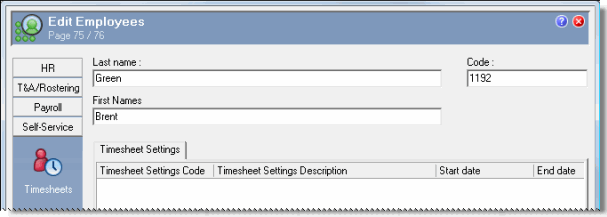
Use the following procedure to attach Timesheet Settings records to employees.
Note: You can also use the Update Employee Timesheet Settings command to attach records to a group of employees (see Update Employee Timesheet Settings).
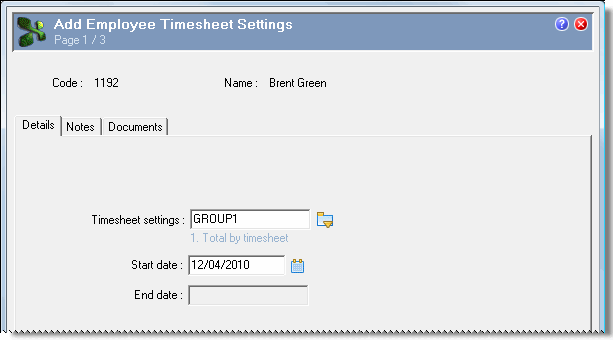
You cannot enter an End date. When you add a new record, PayGlobal automatically adds an End date value to the existing record that is one day before the start date of the new record.
After you save the Timesheet Settings record, you cannot edit it.
Multiple records
You can add multiple Timesheet Settings records for an employee.
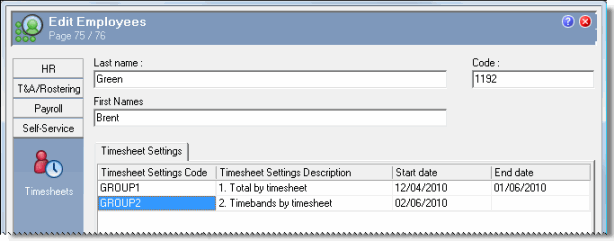
PayGlobal sorts the Timesheet Settings records by Start date.
When you add a new record:
Important:
- You must not change an employee's timesheet settings for periods in the past. If timesheets have been generated and finalised for a period and then you change the employee's timesheet settings for that period, those timesheets will be invalid. If you need to change an employee's timesheet settings, then you should make the change for a period in the future or as close to the current date as possible.
- If you change an employee's timesheet settings for periods that have already been generated, then the new settings are not applied until the Timesheet Admin opens the next timesheet period. If you want to apply the settings immediately, then the Timesheet Admin needs to delete the employees timesheet for that period and then generate it again.
- See Adding a timesheet with a different period.
Deleting records
When you delete a record:
 |
Topic: 37176


