

|
|
|
|
|
|
The Timesheet Admin is responsible for ensuring that all timesheets are completed and finalised.
Is finalisation automated? The Automate timesheet finalisation? setting on the Timesheet Options page controls whether Self-Service Scheduler finalises timesheets automatically or whether the Timesheet Admin must finalise them manually. When Automate timesheet finalisation? is set to:
|
Finalising timesheets
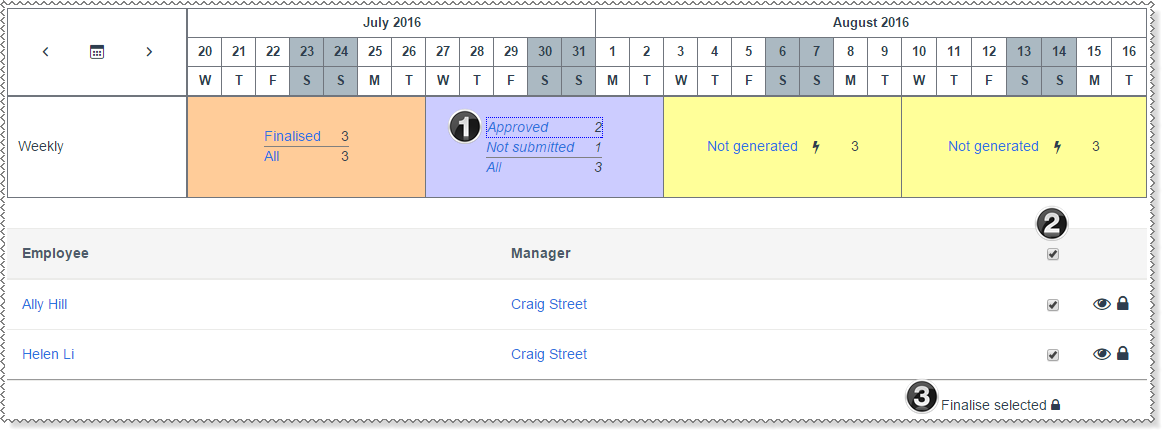
|
Click the Approved link to see all approved timesheets. |
|
Click the top checkbox to tick all of the checkboxes. Alternatively, click the checkboxes for only the employees that you want to finalise timesheets for. |
|
Click Finalise selected. |
The blue arrows that let you finalise timesheets also appear when you view all timesheets, but you can only finalise one timesheet at a time (see the Manage Timesheets image).
Outcome
When the Timesheet Admin clicks the Finalise Approved Timesheets button (or Self-Service Scheduler runs the process), ESS completes the following procedure.
Important: The ASPNET account must have write permissions to this path or an error will appear.
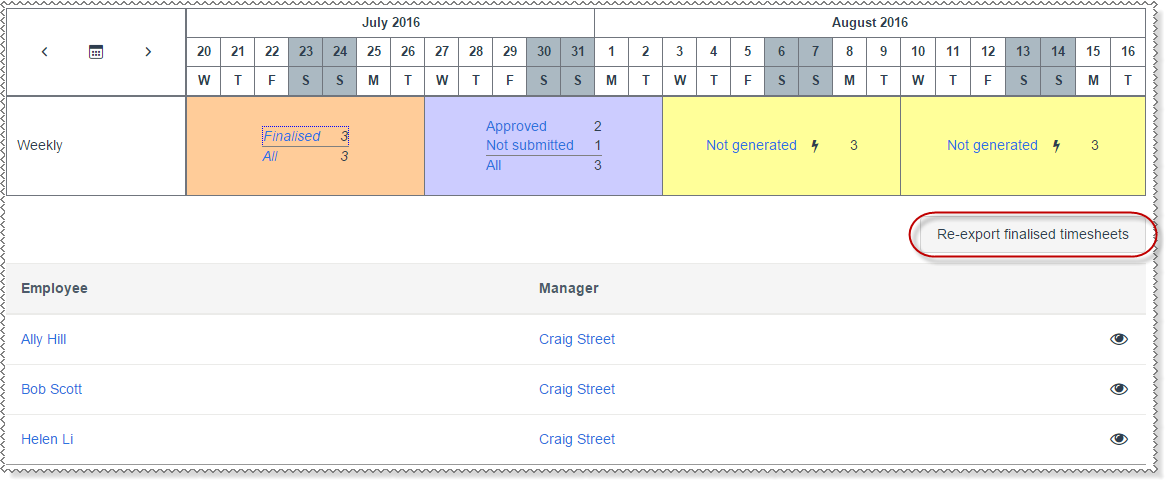
After you successfully export timesheets:
|
|
|
 |
Topic: 38196


