

|
|
|
|
|
|
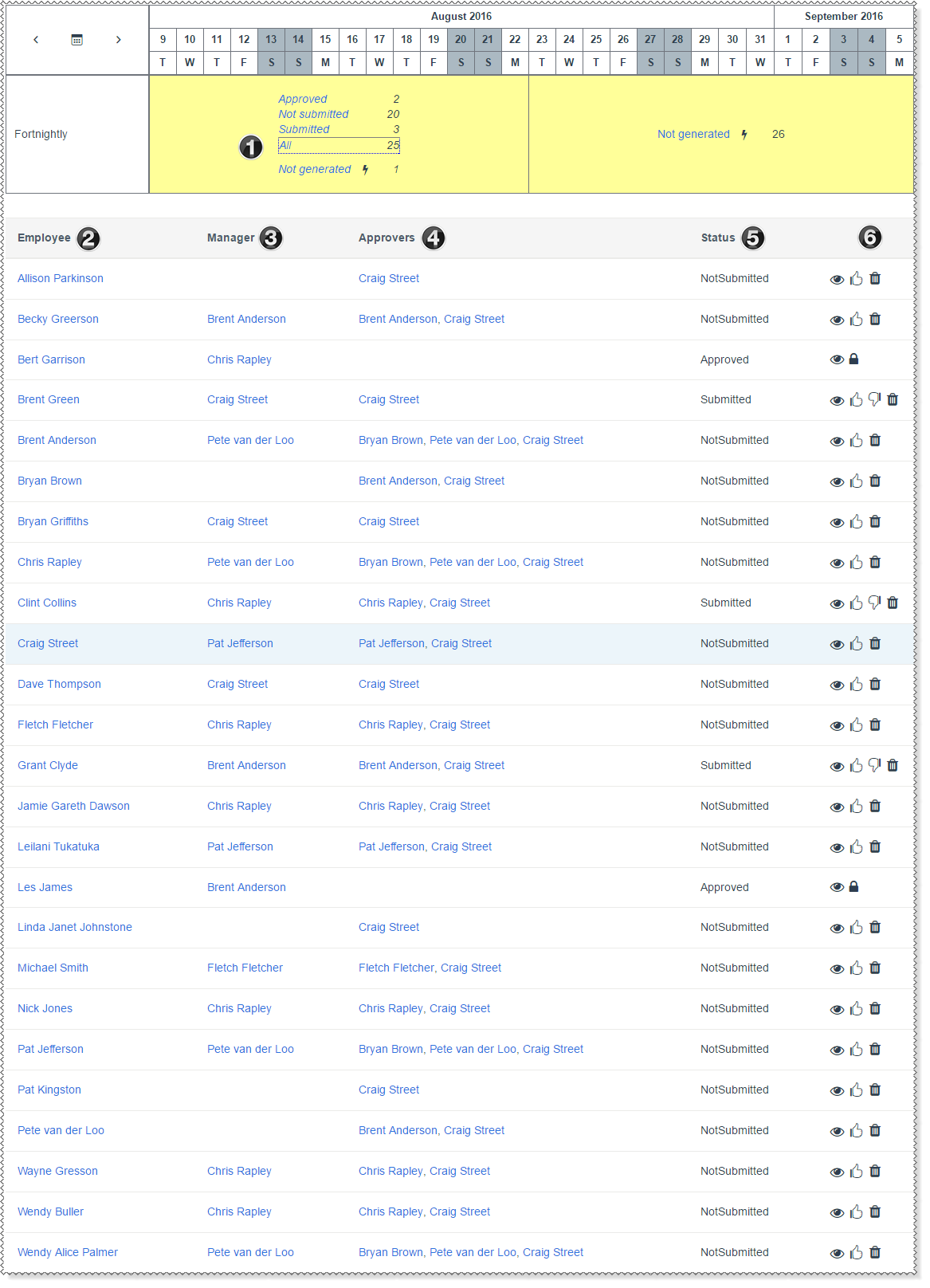
The table below the following image explains the numbered features on the Timesheets Admin grid.
|
Click a timesheet status to view the employee timesheets with that status. When you click a link, the active link is black. The All link shows all timesheets for the selected period. |
|
Click an employee name to view their details in a popup. |
|
Click a manager's name to view their details in a popup. |
|
Approvers column is visible when the Timesheet Admin clicks the Submitted or All links below the calendar. Displays the names of the people who can approve the employee's timesheet. In this example, the timesheets can be approved by the employee's manager and the Timesheet Admin. |
|
Statuses are: - Not generated - Not submitted - Submitted - Approved - Finalised. |
|
If a current employee does not have a timesheet for the week, then you should approve the empty timesheet, not delete it.
|
 |
Topic: 38135


 Approve the timesheet immediately (does not open the request). Not available for approved timesheets.
 Decline the timesheet immediately (does not open the request). Not available for approved timesheets.
 Delete redundant timesheet. For example, the employee has left the company and no longer needs to submit timesheets.
  Finalise the timesheet. Available for approved timesheets only. See